Escalation Rules
Define automated actions that fire when AI response confidence falls into specific bands
Escalation rules define automated actions that fire when a conversation's confidence score falls into a specific band. Rules are evaluated in order — the first matching enabled rule wins.
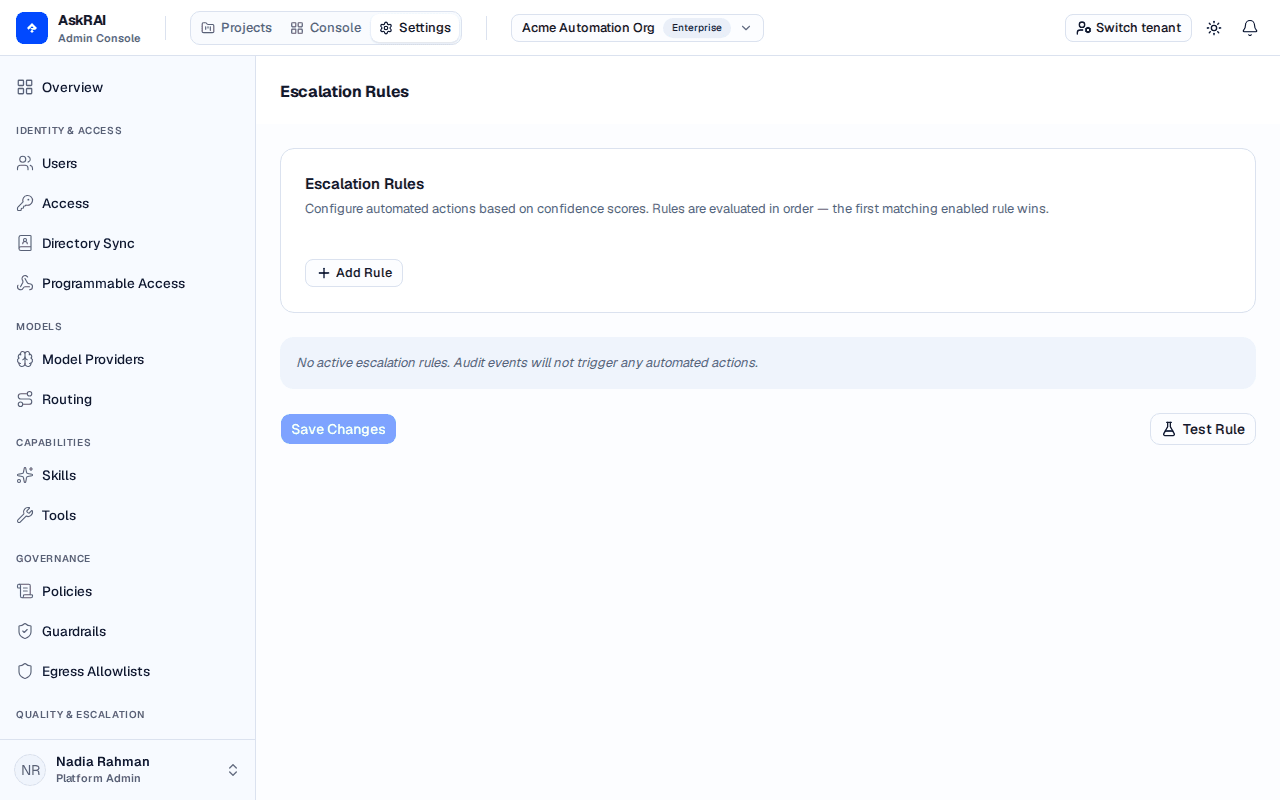
The Escalation Rules section displays each rule as a draggable card. Rules are evaluated top to bottom.
Escalation runs after the answer has already been delivered. AskRAI answers the user first, and your rules are then evaluated against the record of that turn. Escalation is therefore a follow-up mechanism — it can open a ticket for a human to pick up, but it cannot intercept, alter, or withhold a response the user has already received. To stop an answer, use a guardrail: one on the Input stage refuses the question before an answer is generated, and one on the Output stage can withhold or rewrite the answer before anyone reads it.
Escalation Rules is a Platform Admin surface. A Member does not see Escalation Rules in the Settings sidebar and cannot open the Settings plane at all, so the Test Rule dialog on this page is admin-only too. Rules are still evaluated for every user's queries — only authoring them is restricted. Two exceptions are worth knowing: the Sandbox only previews which rule would match and never runs its action, and a turn whose retrieval failed is skipped by rule evaluation entirely, so no ticket opens for it. See Access for the role model.
Rule structure
Each rule consists of:
| Field | Description | Required |
|---|---|---|
| Name | Display label for the rule | Yes |
| Confidence Band | Which band triggers this rule — High, Medium, or Low | Yes |
| Action Type | What happens when the rule matches (see below) | Yes |
| Enabled | Toggle to activate or deactivate the rule without deleting it | Yes |
| Order | Priority position — drag cards to reorder | Auto |
Each rule card also carries a trash icon (Remove rule) that deletes the rule from the list. Like every other change on this page, the removal is staged in the browser and only takes effect when you click Save Changes.
Action types
| Action | What it does today | Configuration |
|---|---|---|
| Create Ticket | Opens a support ticket automatically. The only action with a runtime effect. | Priority (Default/Low/Medium/High/Critical), Assigned To, Include AI Context |
| Flag for Review | Not yet implemented — records a log line on the server and nothing else. No conversation is marked and no notification is sent | Notify User ID (not read) |
| Suppress Response | Not yet implemented — records a log line on the server and nothing else. It cannot block a response: escalation runs only after the answer has been delivered | Fallback Message (not read) |
| Auto Respond | Takes no automated action — the AI responds normally | None |
Expand a rule card to configure action-specific settings. The configuration section only appears for action types that have additional options.
Only Create Ticket currently does anything. Flag for Review and Suppress Response can be selected and saved, and their configuration fields accept input, but no code acts on them — a rule using either one will appear to be configured correctly while having no effect whatsoever. Until they are implemented, route anything you actually need a human to see through Create Ticket.
For Create Ticket, all three settings are honoured. Priority left at Default stores the ticket as Medium, and Assigned To takes a free-text user or group ID (it is copied onto the ticket verbatim and is not validated). Include AI Context is much narrower than its name suggests. It gates only the ticket's ai_context block — the stored confidence score and a copy of the raw AI response. It is on by default, and rules created before the setting existed keep including the AI context, so clearing it is an explicit opt-out.
Include AI Context is not a privacy control for the answer. The assistant's answer is copied onto every escalation ticket regardless of the toggle, and is always shown under Answer in the ticket drawer. Clearing the toggle removes only (a) the confidence score — so the AI Confidence badge disappears from the ticket card and drawer — and (b) the ai_context.response copy of the AI response, which the drawer displays as AI Response (Raw) only when it differs from the delivered answer.
When the assistant streams its answer, the stored AI response and the delivered answer are the same string, so clearing the toggle withholds no answer text at all — the only visible change is the missing confidence badge. The two differ only on the non-streamed low-confidence path, where the user is sent a clarification request while the model's best-effort answer is carried separately; there, clearing the toggle does keep that separate text off the ticket. In every case the answer the user received is still stored on the ticket and rendered, so there is no setting that keeps a model-generated answer out of a ticket queue.
Apart from those two fields, a ticket created with Include AI Context cleared is unchanged: it still carries the question, the answer text, the reporting user, the chat (session) id, the priority, the assignee and the originating Audit ID, and renders normally. Rule-created tickets now also record the Channel of the conversation that triggered them — copied from the source audit event — so the Channel field in the ticket drawer shows where the conversation took place. It is blank only on tickets created before this was added.
Creating a rule
Open Escalation Rules
Open the Settings plane from the top navigation bar, then select Escalation Rules in the Settings sidebar.
Add a Rule
Click Add Rule. A new rule card appears at the bottom of the list with default values (Low confidence, Create Ticket action).
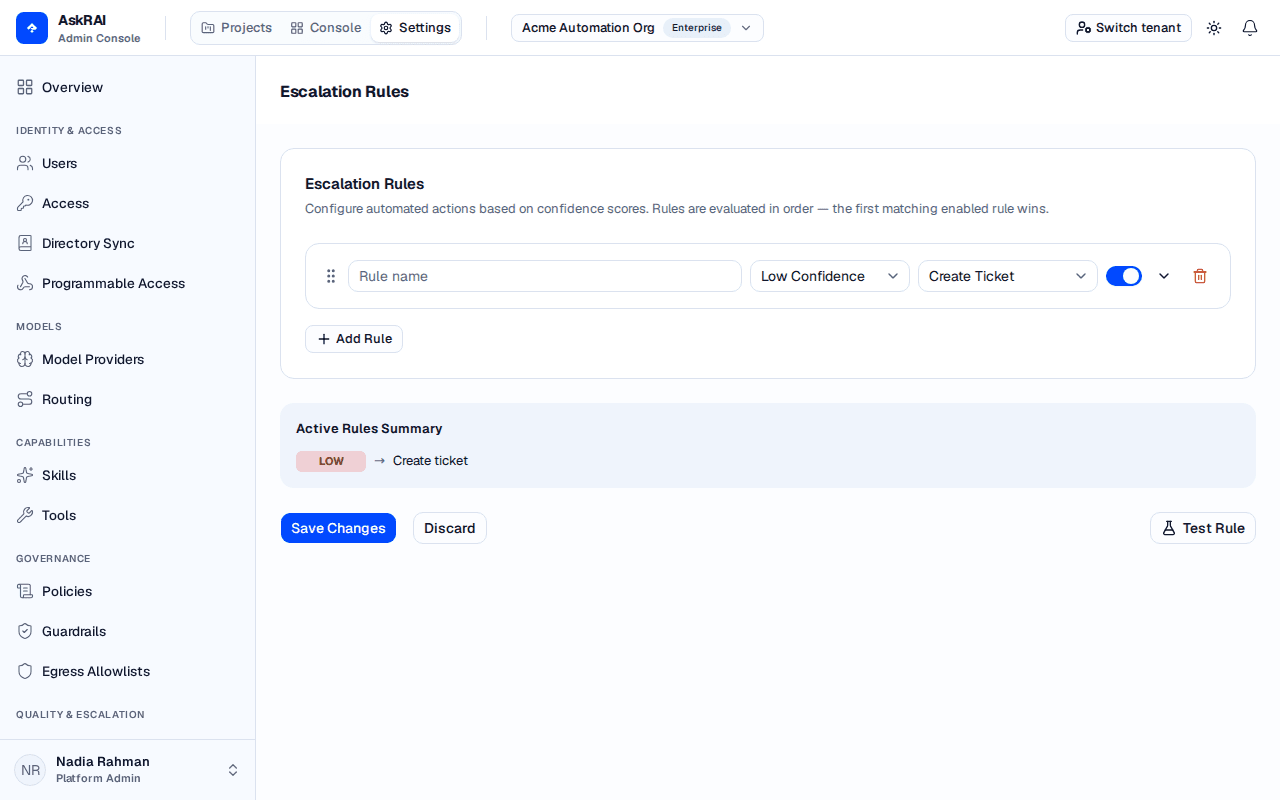
A new rule card appears with default settings ready to configure.
Configure the Rule
Enter a name, select the confidence band and action type, then expand the card to set action-specific options.
Reorder if Needed
Drag rule cards to change evaluation order. The first matching enabled rule is the one that fires — disabled rules are skipped entirely.
Save Changes
Click Save Changes to persist all rule modifications. Saving replaces the tenant's entire rule set with what is currently on screen — rules you removed are deleted, and reordered cards are stored in their new order.
While there are unsaved changes, a Discard button appears next to Save Changes. It reverts every staged edit — additions, removals, reorders and field changes — back to the last saved state.
Edits on this page are staged in the browser until you save. Closing or reloading the browser tab with unsaved changes prompts for confirmation, but navigating to another page inside the console does not — the page re-fetches on its next load and unsaved edits are silently discarded. Click Save Changes before you leave.
Testing rules
Click Test Rule to open a dialog where you can set a confidence score (0–100%) and see which rule would match. The test result shows the confidence band the score falls into and, if a rule matches, its name and action type — otherwise it reports that no rule matches. Testing evaluates the last saved rule set, not unsaved edits on screen.
Rules are evaluated in the order shown. If multiple rules match the same confidence band, only the first enabled rule fires. Drag cards to set the right priority.
Related pages
- Confidence Thresholds — configure the bands that trigger escalation rules
- Tickets — view tickets created by escalation rules
- Conversation Logs — review audit records with escalation decisions