Users, Roles & Groups
Manage user accounts, define roles with mapping rules including caller and credential types, and organize access through groups
User Management is your central hub for access management. Users represent real people in your organization, roles define usage patterns with automatic mapping rules, and groups tie users and roles together with access to specific knowledge packs and guardrails. Find it under Settings → Users.
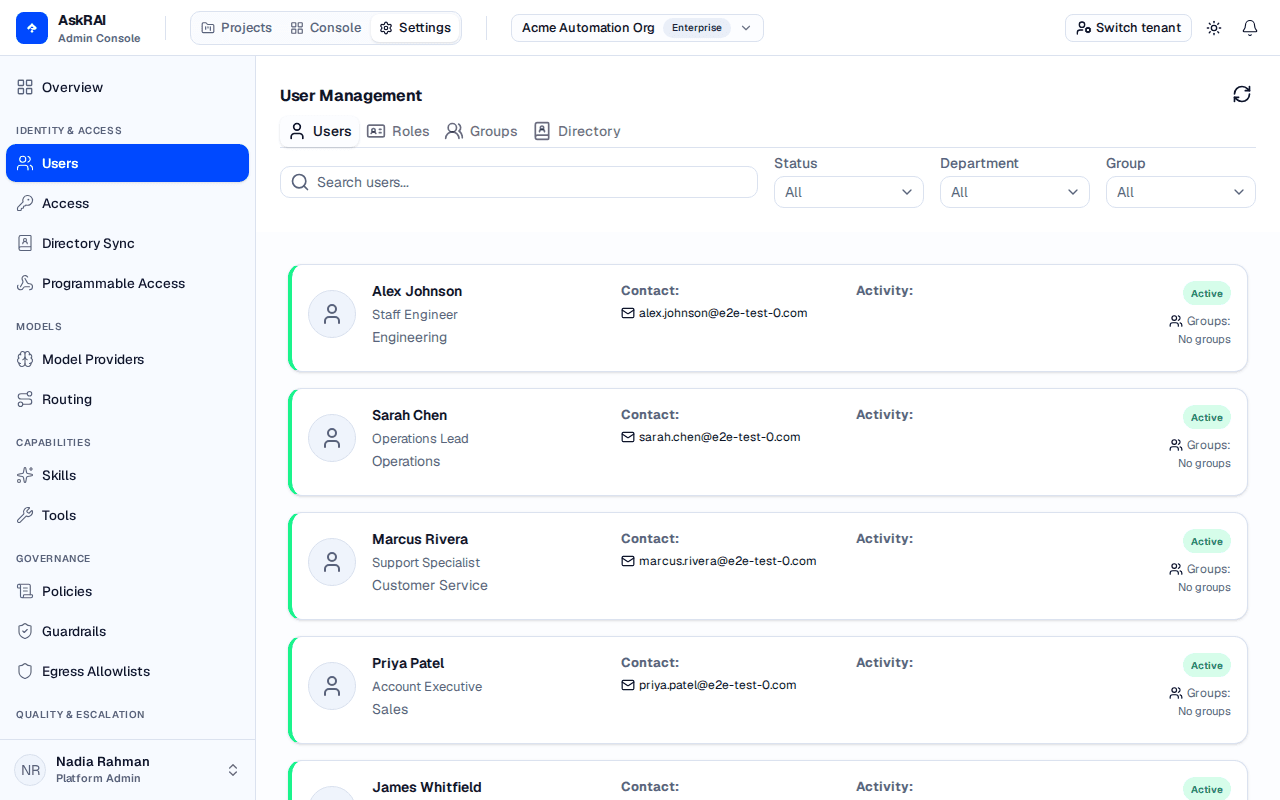
The Users tab displays all user accounts with their status, department, and group memberships.
User Management lives in Settings, so only a Platform Admin can open it — see Access. The older /users link still works and redirects here.
What this page does not control
Everything on this page — groups, roles, mapping rules — decides which knowledge and guardrails apply to an interaction. It does not decide who may administer AskRAI. That is a separate, tenant-level question answered on the Access page, which grants the Platform Admin and Member roles. Adding someone to an "Admin Access" group here does not let them into Settings.
Users tab
The Users tab shows all user accounts provisioned through Directory Sync — whether your identity provider pushes them over SCIM 2.0 or AskRAI pulls them from Google Workspace. Each user card displays the person's name, job title, department, contact information, last login time, and group memberships.
User status
Users have one of two statuses:
| Status | Description |
|---|---|
| Active | The user can access the system normally |
| Blocked | The user is prevented from logging in |
Administrators can block or unblock users by updating their status.
User details drawer
Click any user card to open the details drawer with three tabs:
- Details — personal information including name, job title, department, employee ID, email, phone, and address
- Activity — account status, current online state, last login timestamp, and active session details (device, browser, location)
- Groups — lists all groups the user belongs to, with member counts and knowledge pack access
Filtering Users
Use the search bar and filter dropdowns to narrow the list:
| Filter | Options | Description |
|---|---|---|
| Search | Free text | Matches user names, display names, and email addresses |
| Status | All, Active, Blocked | Filter by account status |
| Department | All | Not yet selectable — see the note below |
| Group | All | Not yet selectable — see the note below |
Search and the Status filter are live. The Department and Group dropdowns currently offer only All — their option lists are not yet populated, so you cannot filter by a specific department or group from this screen. Narrow the list with search or the Status filter instead. Department and group are still shown on each user card and in the details drawer.
Groups tab
Groups are permission containers that connect users and roles to knowledge packs and guardrails. A user's access to knowledge base content is determined by their group memberships.
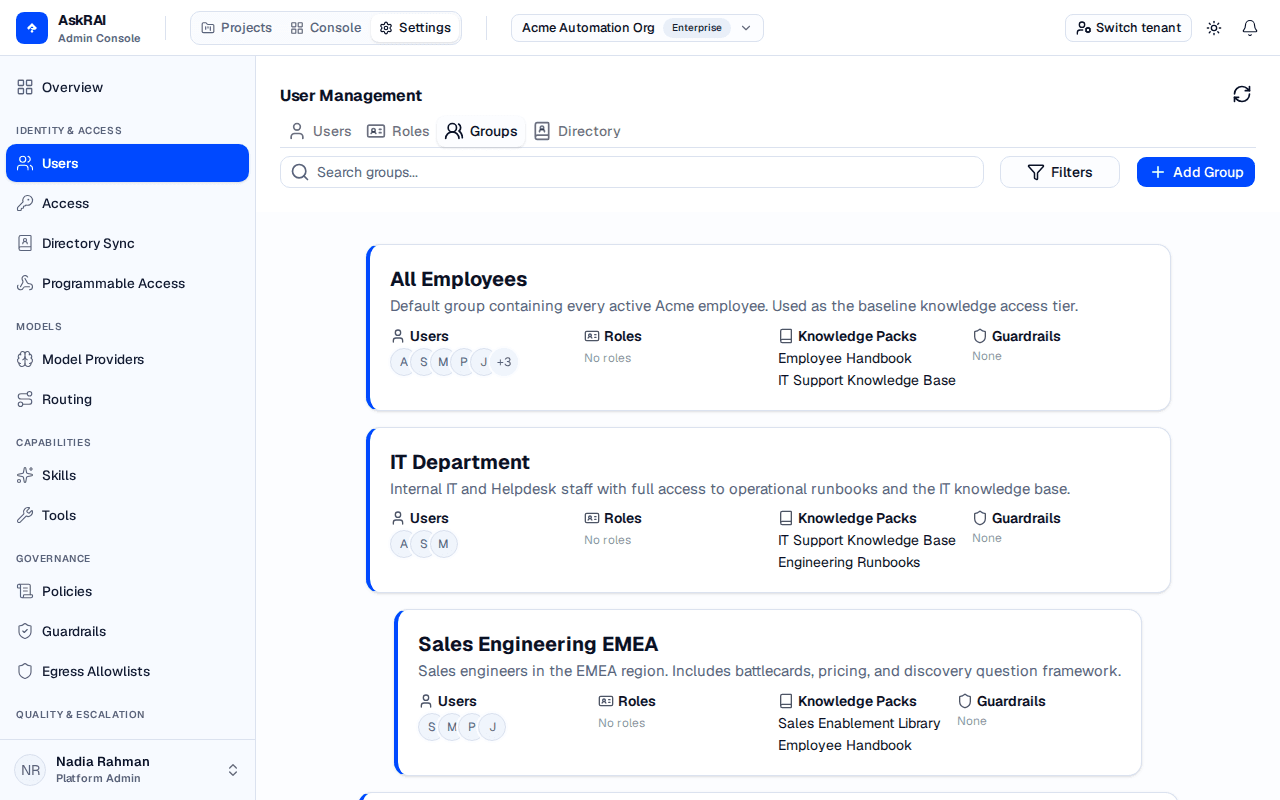
Each group card shows its members, assigned roles, accessible knowledge packs, and applied guardrails.
Creating a group
Open the Create Dialog
Switch to the Groups tab and click Add Group in the top-right corner.
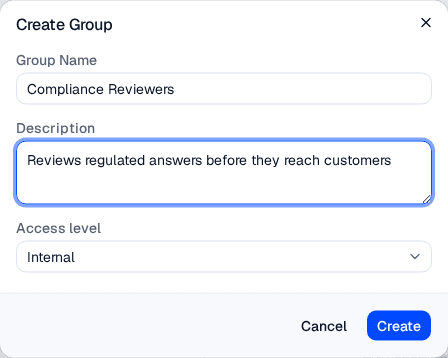
A native group created here can carry guardrails and knowledge packs exactly like a synced one — the difference is only where its membership comes from.
Enter Group Details
Type a group name (required) and an optional description, and choose the group's Access level — Public, Internal, Confidential or Restricted, defaulting to Internal. Click Create to save.
Configure the Group
After creation, the group details modal opens automatically. Use its six tabs to configure the group:
- Members — add users and roles to the group. Toggle between Users, Roles, or Both views, search, and click the + icon to add them.
- Knowledge Packs — select which knowledge packs this group can access. Search and add packs from the available list.
- Guardrails — assign the guardrails that apply to this group's interactions.
- Policies — attach governance policies to the group, each bringing its own guardrails and ceilings.
- Credentials — a read-only list of the programmable-access credentials mapped to this group, each with its type and an Active or Revoked status. Credentials themselves are issued and managed on the Programmable Access page.
- Directory — link this group to a SCIM directory group so its membership is provisioned from your identity provider. While linked, members are synced from the directory and managed there; unlink to return to manual membership. This requires directory groups provisioned through Directory Sync.
Group types
| Type | Description |
|---|---|
| Manual | Members are added and removed by administrators |
| Automatic | Members are assigned automatically from user attributes. Not yet functional — the console creates only Manual groups, and automatic assignment is not evaluated at query time |
Group fields
| Field | Description | Required |
|---|---|---|
| Name | Display name for the group | Yes |
| Description | Explains the group's purpose | No |
| Type | Every group created here is Manual. The API accepts Automatic, but the console offers no control for it | Set for you |
| Access Level | Public, Internal, Confidential or Restricted. Defaults to Internal. Where a person is in several groups, the highest level among them applies | No |
| Members | Users and roles assigned to this group | No |
| Knowledge Packs | Content collections this group can access | No |
| Guardrails | Safety policies applied to this group | No |
Roles tab
Roles represent usage patterns rather than individual people. Each role defines mapping rules that automatically classify incoming interactions — for example, routing requests from a specific channel to the appropriate access level.
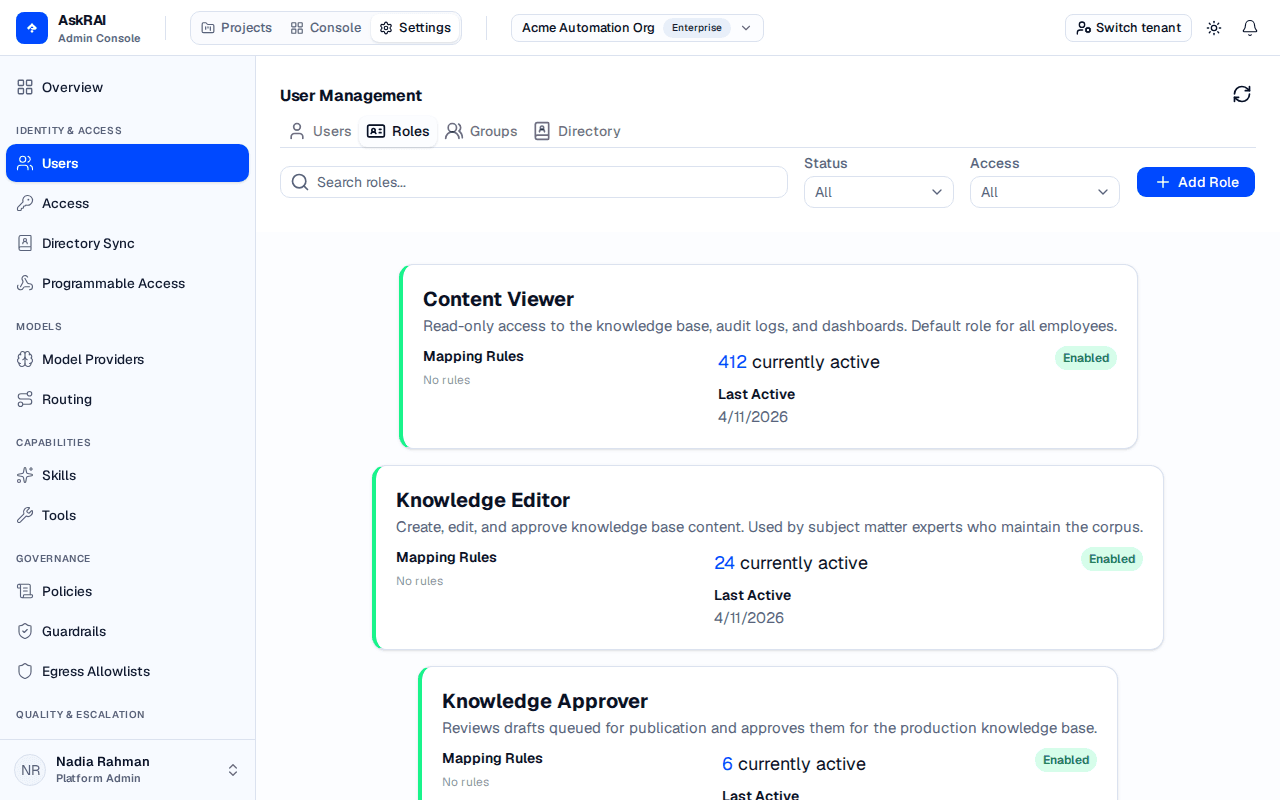
Each role card displays its mapping rules, active user count, and enabled/disabled status.
Role properties
| Field | Description | Required |
|---|---|---|
| Name | Display name for the role | Yes |
| Description | Explains what the role represents | No |
| Category | Access classification: Public Access, Employee Access, Admin Access, API Access, or System Access | Yes |
| Status | Enabled or Disabled | Yes |
| Mapping Rules | Conditions that trigger this role | No |
Mapping rules
Mapping rules define when a role applies based on interaction properties:
| Rule Type | Description | Example |
|---|---|---|
| Channel | Communication channel | Teams, Web Chat, Mobile App, WhatsApp, SMS, Phone, Email, API, CLI, MCP |
| Auth | Authentication method | Authenticated, Unauthenticated, API Key, Executive SSO, Service Credential |
| Device | Device type | Desktop, mobile, tablet |
| Referrer | Source website | URL pattern of the referring page |
| Caller Type | Who initiated the request | Human, Application, Agent |
| Credential Type | How the caller authenticated | Personal Token, Service Account, Agent Credential, Scoped API Key |
All of a role's rules must match for the role to apply, and a user receives the combined access of every role that matches — there is no ordering between roles and no first-wins.
Caller Type and Credential Type rules are designed for programmable traffic. Pair them with the Programmable Access page to declaratively route machine callers — for example, map every Agent credential to a read-only role, or give Service Accounts a higher-privilege role that Personal Tokens do not receive.
Roles are assigned to groups, not directly to users. To give a role access to knowledge packs or guardrails, add it to a group with the appropriate configuration.
Creating a role
Switch to the Roles tab and click Add Role. Enter a name, select a category, and optionally add a description. After creation, open the role to configure mapping rules.
You cannot delete a role that is assigned to any group. Remove the role from all groups first, then delete it.
Directory tab
The Directory tab is a read-only view of the identities provisioned through Directory Sync, shown separately from the native Groups and Roles you manage in AskRAI. Use it to confirm that a sync took effect and that the right people and groups arrived.
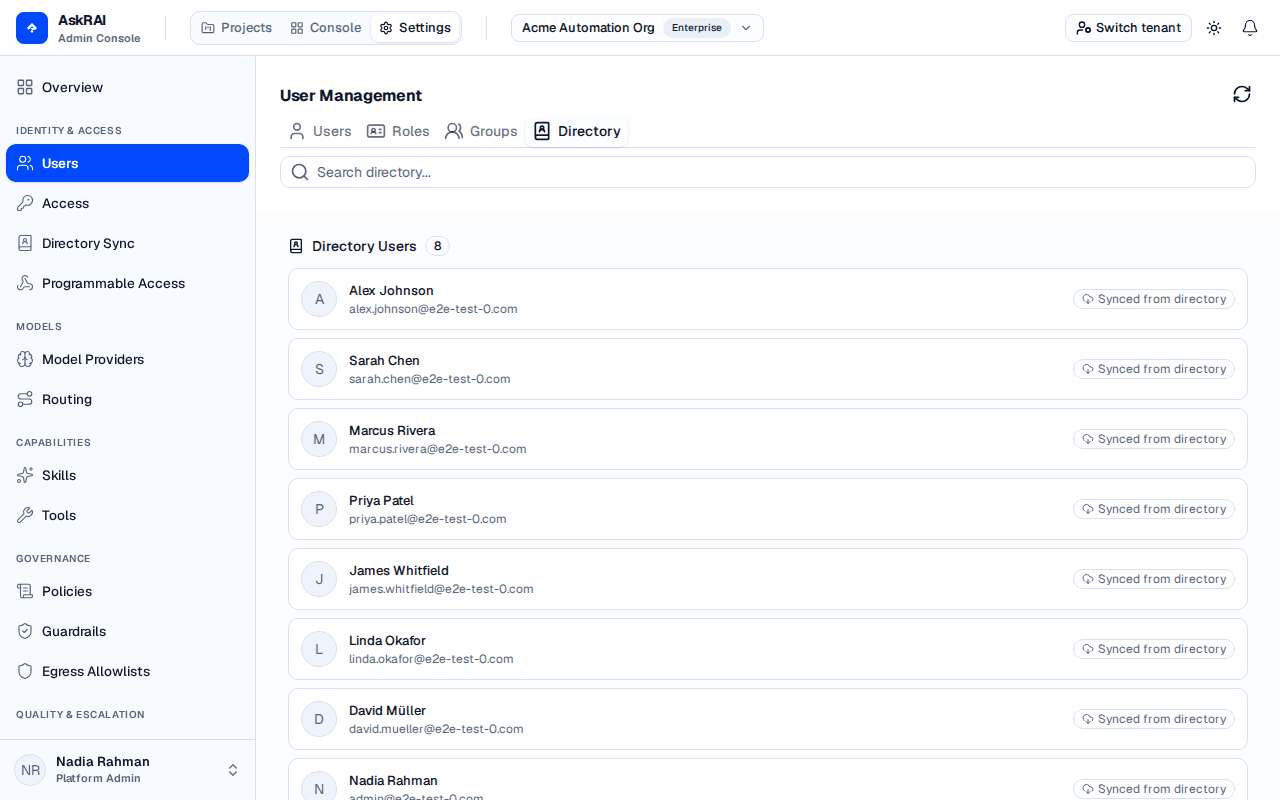
The Directory tab lists every synced user and group, each tagged Synced from directory.
The tab is split into two sections:
- Directory Users — every synced person, with their name, email, and a Synced from directory badge. A user suspended or removed in the source directory is tagged Deprovisioned.
- Directory Groups — every synced group, with its member count and source badge.
Use the Search directory box to filter both lists by name or email. If no source is enabled yet, the tab prompts you to configure Directory Sync; if a source is enabled but the first sync hasn't completed, it shows an "awaiting first sync" state.
The Directory tab reflects exactly what your identity provider sent. To change who appears here, manage users in your IdP or Google Workspace — not in AskRAI. Native Groups and Roles (the other tabs) remain yours to configure and can be linked to synced identities.
How access control works
The access control model follows this hierarchy:
- Users are real people synced from your identity provider
- Roles classify interactions automatically via mapping rules
- Groups bundle users and roles together
- Groups grant access to knowledge packs and guardrails
A user's effective access is the union of all knowledge packs and guardrails from every group they belong to.
Administrative access runs on a separate track: a user's tenant role — Platform Admin or Member — is granted on the Access page and decides whether they can open Settings at all. The two are independent, so a Member can still hold rich content access through their groups, and a Platform Admin has no extra knowledge access just for being an admin.
Related pages
- Access — grant the Platform Admin and Member tenant roles to the users and groups managed here
- Directory Sync — provision the users and groups shown on the Directory tab from SCIM 2.0 or Google Workspace
- Knowledge Packs — content collections that groups can access
- Guardrails — safety policies assigned to groups
- Programmable Access — issue credentials whose Caller Type and Credential Type are matched by the role rules described above
- Sandbox — test how a credential resolves to a role and group before pointing live traffic at it
- Settings — configure system-wide settings and escalation rules