Knowledge Packs
Organize knowledge base content into collections with file uploads, content type selection, processing history, and bulk status management
Knowledge packs let you organize your knowledge base content into logical collections. Each pack groups related question-and-answer pairs or documents, making it easier to manage, upload, and maintain the content that powers your AI assistant's responses.
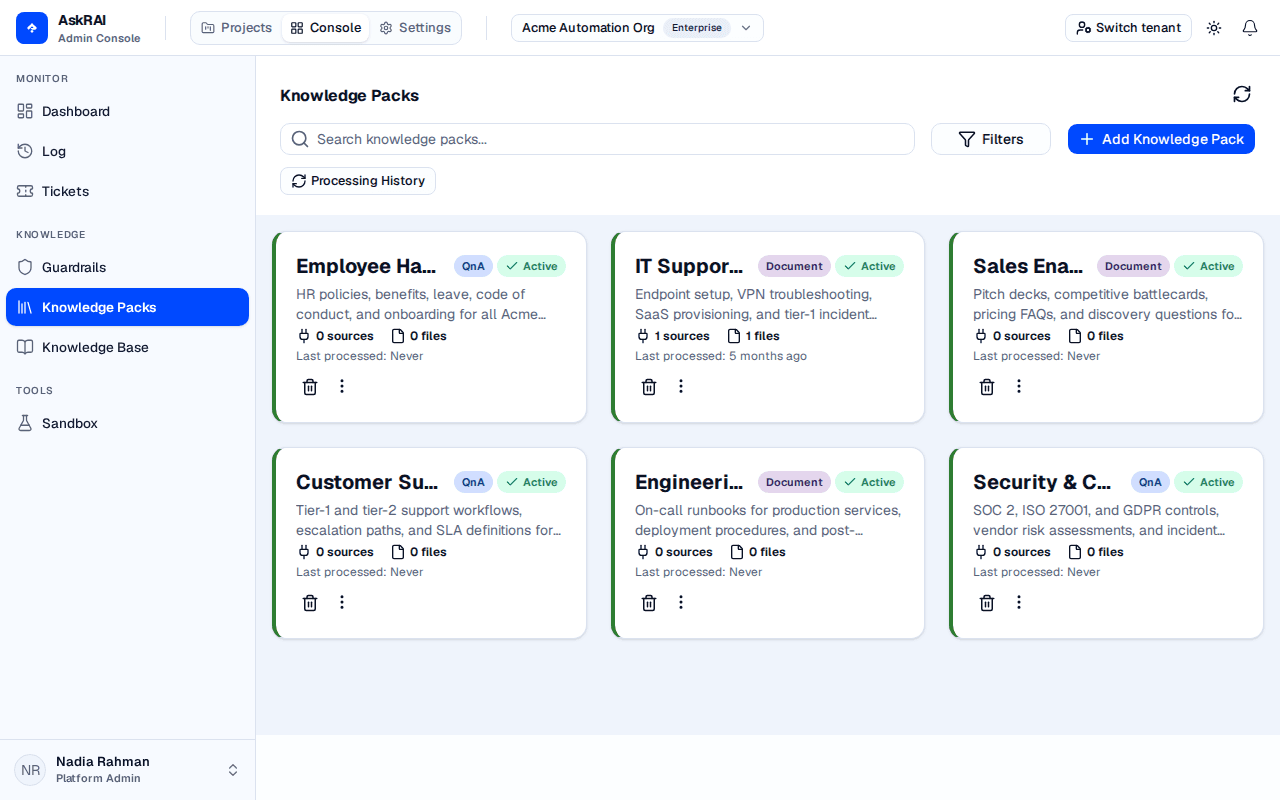
The Knowledge Packs page displays all packs as cards with content type badges, source counts, and action buttons.
Key concepts
Before working with knowledge packs, understand these core concepts:
- Content type — each pack is either QnA (question-answer pairs for direct lookup) or Document (whole documents for agent search without creating QnAs). You choose the type when creating a pack and it cannot be changed later. The console spells the content type QnA and an individual pair Q&A — this page follows the same convention.
- Sources — files you upload to a pack. Each source is first transferred from your browser (Uploading), then goes through the processing pipeline (Queued → Parsing → Chunking → Generating QnA → Indexing) before its content becomes searchable. Per-source progress and failures are shown inside the pack's details modal.
- Status — packs display an overall status derived from their sources: Syncing while any source is Queued, Parsing, Chunking, Generating QnA or Indexing; Error if a source failed and no source is in flight (in-flight work outranks a failure, so a source that is being retried reads Syncing, not Error); Active otherwise. A source that is still Uploading is deliberately not counted as in flight — the bytes are still with the browser — so on its own it does not make the pack Syncing: such a pack reads Active (or Error, if a sibling source failed). Stopped (cancelled) sources are likewise excluded from the in-flight set.
- Bulk actions — you can approve or draft all QnAs or document chunks in a pack at once, controlling whether content appears in search results.
- Searchable on write — there is nothing to sync. Processing embeds each chunk or Q&A as it stores it, so content is searchable the moment it lands. What decides whether the assistant may use an item is its status: only Approved items are retrievable, and approving one takes effect immediately. Past processing runs are listed on the read-only Processing History page.
Browsing Knowledge Packs
The Knowledge Packs page displays all packs as cards in a responsive grid. Each card shows the pack name, description, content type badge (QnA or Document), source and file counts, a Last processed timestamp for that pack (see the field reference), and quick-action buttons. The quick actions are Delete and, for QnA and Document packs only, the ⋮ bulk-actions menu.
Searching and filtering
Use the Search knowledge packs field at the top of the page to find packs by name. For more precise filtering, click Filters to open the advanced filters popover, where you can filter by status — Active, Syncing, or Error (the three states a pack can be in; see the status reference).
Active filter selections appear as chips below the search bar. Click the x on any chip to remove that filter, or use Clear All Filters in the popover to reset all filters at once.
Creating a Knowledge Pack
Click Add Knowledge Pack
Click the Add Knowledge Pack button in the top-right corner of the page.
Select a Content Type
Choose between QnA and Document using the toggle buttons. QnA packs store or generate question-answer pairs for direct lookup. Document packs store whole documents for agent search without creating QnAs.
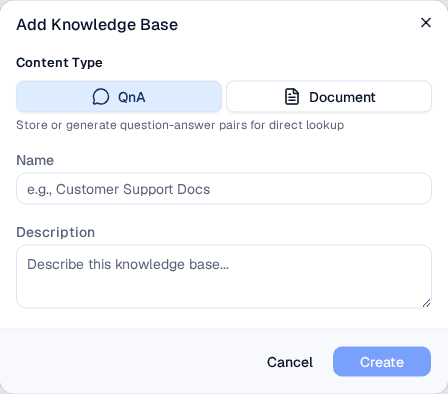
The content type is fixed at creation and decides which files the pack accepts: Document packs take PDF only, Q&A packs take PDF, CSV and XLSX.
Enter Name and Description
Provide a descriptive Name (up to 200 characters) and Description (up to 1,000 characters) for the pack. Both fields are required.
Create the Pack
Click Create to save the new knowledge pack. The dialog closes automatically and the pack appears in the grid.
The content type cannot be changed after creation. If you need to switch between QnA and Document, create a new pack with the correct type.
Managing pack details
Click any knowledge pack card to open its details modal. From here you can edit the pack's name and description, upload files, and manage sources.
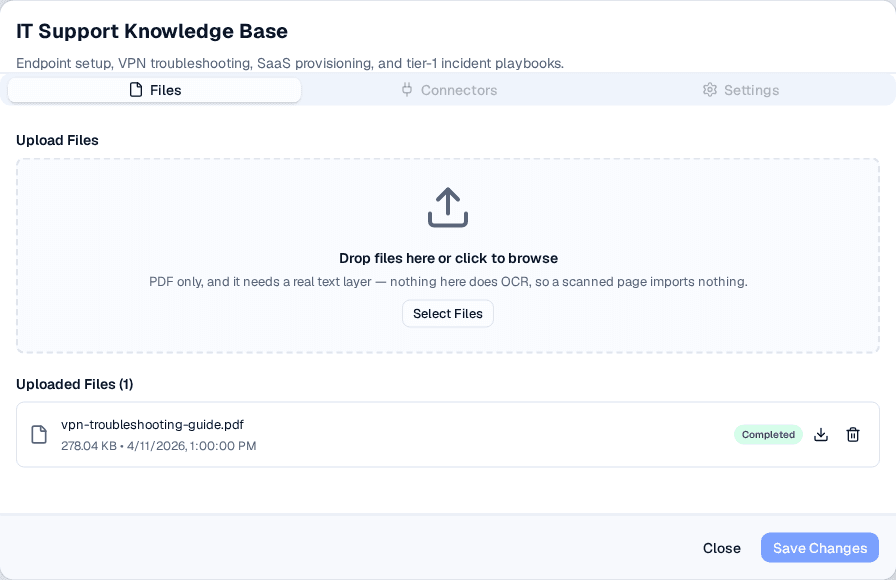
The modal opens on the Files tab. The drop zone names the formats this pack accepts, and every source already uploaded to it is listed beneath, with its processing state.
Files is the only working tab. The Connectors and Settings tabs are disabled and cannot be opened — they are reserved for a future release.
Editing name and description
To rename a pack, hover over (or tab to) the pack name in the modal header and click the pencil button that appears — clicking the name itself does nothing. The description is directly clickable. Make your changes and press Enter to confirm or Escape to cancel, then click Save Changes to persist your edits to the server.
Uploading files
Open the Files Tab
In the details modal, select the Files tab (selected by default).
Add Files
Drag and drop files onto the upload area, or click Select Files to browse. You can upload multiple files at once. The hint under the drop zone names the formats for the pack you opened, and they depend on its content type:
- Document packs: PDF only
- QnA packs: PDF, plus CSV and XLSX for importing question/answer pairs you have already written
PDF is the only document format, and it must carry a text layer. Word, PowerPoint and image files (.doc, .docx, .pptx, .png, .jpg, .tiff, .bmp) are refused, and so is a spreadsheet added to a Document pack — XLSX is accepted only by QnA packs, as a table of pairs to import. The console refuses them before anything is transferred: Select Files offers only the accepted extensions, and a file that gets in anyway — dropped onto the upload area, or chosen after switching the picker to "All Files" — is dropped from the selection with the toast <file> is not a supported file type. Supported: .pdf. It never reaches Selected Files, and no source row is created. Convert before you upload, not after.
There is no OCR. A scanned page or a photograph of a document uploads successfully and then fails during processing with "No extractable text layer was found in this file" — export a text-based PDF from the original instead. Convert Office documents to PDF before uploading.
Review Selected Files
Selected files appear in the Selected Files list below the drop zone. Remove any unwanted files by clicking the x button next to each file, or click Clear All to remove all pending files.
Upload and Process
Click Upload Files to start the upload. Each file goes directly from your browser to AskRAI's object storage over a short-lived signed URL — the bytes never pass through the AskRAI API — and processing begins automatically. You can track the processing status in the Uploaded Files list:
- Uploading / Queued — file is being transferred or waiting to process
- Parsing / Chunking / Generating QnA / Indexing — file is being processed through the pipeline
- Completed — file has been fully processed and content is searchable
- Error — processing failed. The chip shows the beginning of the error message inline (it is truncated, and there is no tooltip with the full text)
You can stop a source that has entered the processing pipeline (Queued, Parsing, Chunking, Generating QnA or Indexing) by clicking the stop button next to it. Stopped sources show a Stopped status and their content is not included in search results.
When processing will not start
The transfer and the processing are two separate steps, and the second one can be refused after the bytes have already landed. When that happens the toast names the reason, the file stays safely in storage, and the source waits in Uploading with Retry processing offered — nothing has to be uploaded again.
| Message | What it means | What to do |
|---|---|---|
| Too many active processing jobs (N). Please wait for some to complete. | The tenant already has the maximum number of sources in the pipeline at once — five by default, across every pack. | Wait for one to reach Completed, then Retry processing. Uploading a batch larger than the limit is fine: the first files process and the rest queue up behind this message. |
| The processing queue is not accepting work right now. Please retry shortly. | The bounded work queue refused the job. The source is put back exactly where it was, rather than left in a state that is neither retryable nor cancellable. | Retry processing. It is a transient refusal, not a rejection of the file. |
| Content pack is being modified concurrently. Please retry. | Another change to the same pack — an upload, a delete, a status change, or a running job reporting progress — won the race to write it. Nothing was changed. | Retry processing. Packs are edited as a whole, so two writes landing together is routine; the second one is asked to try again rather than silently overwriting the first. |
All three refusals happen before any parsing, so nothing is half-ingested and no partial content becomes searchable. Retrying costs nothing beyond the retry itself.
A row stuck in Uploading has two causes — try Retry processing before you delete it. The source is registered before the signed URL is issued, so if the browser tab is closed or the transfer fails, the source stays in Uploading. There is no server-side work to stop, so no stop button is offered for it, and the automatic recovery that re-queues genuinely stuck sources deliberately leaves it alone. The Retry processing button (the circular arrow, offered for Uploading and Error sources) covers the case where the transfer did land and only the follow-up processing call failed: it re-queues the file already in storage, with nothing to transfer again — and a refusal from the table above is the most common reason that call failed. If the transfer never landed, retrying cannot help — use the trash icon, which stays available for this status, and upload the file again. An abandoned upload does not make the pack read Syncing — the pack reads Active (or Error, if another source failed).
Source row controls
Every row in the Uploaded Files list carries a Download button that retrieves the original file exactly as it was uploaded — useful for checking what was actually ingested, or for recovering a file whose local copy is gone. It is disabled only while the source is still Uploading, when there is nothing stored yet to fetch. Retry processing and Stop processing appear only for the statuses described above.
In the same list, click the trash icon next to a source to remove it, along with everything derived from it and the uploaded file itself. The trash icon is disabled only while the source is in the processing pipeline (Queued, Parsing, Chunking, Generating QnA or Indexing) — stop it first, then delete it. Completed, failed, stopped and abandoned Uploading sources can all be deleted directly.
Bulk status management
Bulk actions let you approve or draft all items in a knowledge pack at once. This is useful when you have uploaded new content and want to make it all searchable, or when you need to temporarily hide all content from users.
Open the Bulk Actions Menu
On the knowledge pack card, click the three-dot menu icon (⋮) to open the bulk actions menu. This option is only available for QnA and Document type packs.
Choose an Action
Select either:
- Bulk Approve All QnAs (or All Chunks on a Document pack) — marks every item in the pack as approved, making it retrievable
- Bulk Draft All QnAs (or All Chunks) — marks every item as draft, taking it back out of retrieval
Confirm the Action
A confirmation dialog explains the impact. Click Approve All or Mark as Draft All to proceed, or Cancel to abort.
Approving all items makes them immediately visible in AI assistant responses. Review your content before bulk-approving to avoid surfacing incomplete or inaccurate information.
Deleting a Knowledge Pack
To delete a pack, click the trash icon on the pack card. A confirmation dialog warns that the action is permanent and will remove the pack, all Q&A entries, and all uploaded files. Click Delete Knowledge Pack to confirm.
Deleting a knowledge pack is permanent and cannot be undone. All associated content — including Q&A entries, document chunks, and uploaded files — is permanently removed.
Processing history
There is no index to rebuild and nothing to trigger: each chunk and each Q&A pair is embedded and written as it is processed, so it is searchable as soon as it lands, and changing an item's status to Approved makes it retrievable immediately. What the platform records instead is the ingestion itself — one run per file processed.
Click Processing History at the top of the Knowledge Packs page to open that record. It is read-only, and it shows:
- Active run banner — while a file is being processed, a banner shows the run's status, when it started, who started it, and the file it is working on
- History table — a paginated table of past runs: what was ingested, how long it took, and how much knowledge came out of it
The page polls automatically every 3 seconds while a run is in progress, so you can watch it complete without reloading. Processing continues whether or not the page is open.
A run is recorded for each file that goes through the pipeline, whether it was uploaded to a Document pack, uploaded to a QnA pack for pair generation, or imported as a CSV or XLSX table of pairs. Bulk status changes and deletions are applied directly and are not runs, so they never appear here.
Field reference
Knowledge Pack card
| Field | Description |
|---|---|
| Name | Display name for the knowledge pack |
| Description | Brief summary of the pack's content (truncated to 2 lines on cards) |
| Content Type | QnA or Document — determines how uploaded files are processed |
| Status | Active, Syncing, or Error — derived from the state of the pack's sources. A source that is still Uploading does not count as in flight, so it does not make the pack Syncing |
| Files | Number of uploaded files in the pack |
| Sources | Number of sources connected to the pack |
| Last processed | When a file in this pack last finished processing successfully. A failed run does not move it, and neither does an edit, a status change or a deletion — it tracks ingestion, not content changes. Reads Never until the pack's first file completes |
The card gives you the summary; the details modal gives you the detail. If a pack reads Error, open it — the Files tab shows which source failed and why.
Add Knowledge Base dialog
| Field | Description | Required |
|---|---|---|
| Content Type | Toggle between QnA and Document | Yes |
| Name | Name for the knowledge pack (max 200 characters) | Yes |
| Description | Description of the pack's purpose (max 1,000 characters) | Yes |
Source processing statuses
| Status | Description |
|---|---|
| Uploading | The browser is transferring the file to object storage |
| Queued | File is waiting for processing to begin |
| Parsing | File content is being extracted |
| Chunking | Content is being split into searchable segments |
| Generating QnA | QnA pairs are being generated from document content |
| Indexing | Chunks or questions are being embedded and written to the knowledge base |
| Completed | Processing finished — content is searchable |
| Error | Processing stopped on an error. The chip carries the first part of the message; Retry processing is offered |
| Stopped | Processing was manually cancelled |
Processing history table
| Column | Description |
|---|---|
| Started | Date and time the run began |
| File | The uploaded file this run processed |
| Duration | How long the run took (e.g., "12s" or "2m 5s") |
| Status | In Progress, Completed, or Failed |
| Trigger | Q&A Import for a CSV or XLSX table of ready-made pairs; Document Upload for every other file, including a PDF uploaded to a QnA pack for pair generation |
| Triggered By | The user whose upload started the run, or system when the platform started it itself |
| Produced | What the run stored, as "N Q&A, N chunks". A run that stored nothing reads "Nothing stored from N parsed chunks", or "Nothing parsed" when no text could be extracted at all |
Related pages
- Knowledge Base — browse and manage individual Q&A items and document chunks
- Guardrails — set safety policies for AI responses
- Settings — configure confidence thresholds that affect how knowledge pack content is used
- Sandbox — test your AI assistant's responses using knowledge pack content