Sandbox
Test AI responses with configurable guardrails and credentials, and inspect search, audit, identity, and guardrail results
The Sandbox lets you test AI responses in a safe environment before deploying configuration changes. Send messages, select which guardrails and knowledge packs to apply, and inspect every detail of the response pipeline — including guardrail evaluations, search results, audit records, and model information.
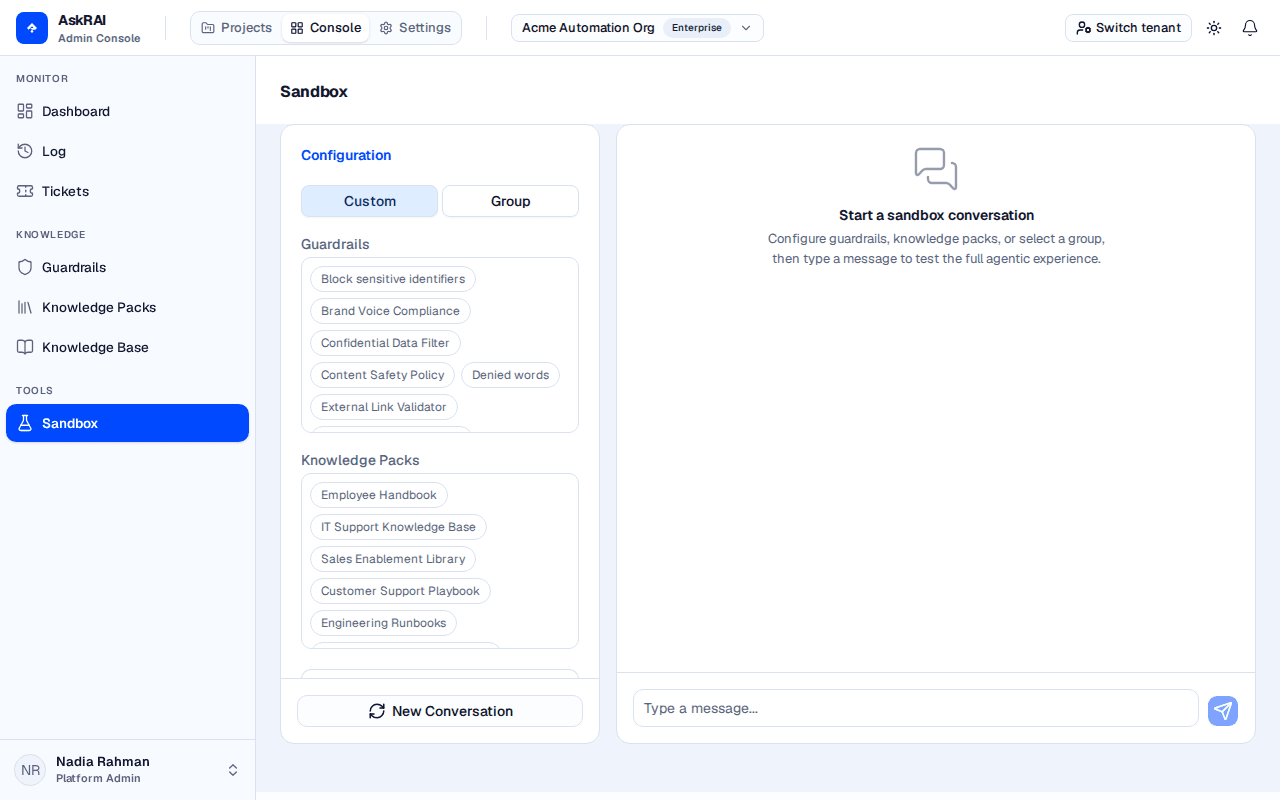
Nothing you send here reaches an end user, and nothing is written to your audit trail — the Audit tab shows a preview of the record this query would have produced. It is still a real model call, so it costs tokens.
Page layout
The Sandbox is divided into three sections:
- Configuration panel (left) — select guardrails, knowledge packs, or a group to test with
- Chat panel (right) — send messages and view AI responses
- Results inspector (bottom, collapsible) — inspect guardrail results, search debug data, audit preview, and model information for any response
Configuration
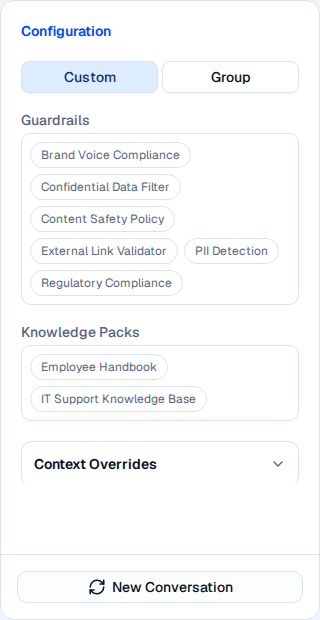
The configuration panel lets you choose between Custom and Group mode.
Configuration modes
Choose one of two modes at the top of the configuration panel:
| Mode | Description |
|---|---|
| Custom | Toggle individual guardrails and knowledge packs on as chips |
| Group | Select a pre-configured group — guardrails and knowledge packs are resolved from the group settings |
When you switch modes, selections from the previous mode are cleared automatically.
In Custom mode, two chip lists appear — each a scrollable bordered box, not a dropdown:
- Guardrails — click a chip to toggle that guardrail on or off for the next message
- Knowledge Packs — click a chip to toggle that knowledge pack into the search scope
Selected chips are highlighted. If nothing is configured yet, the list shows None available.
In Group mode, a single dropdown lets you select a group. After selection, the panel displays the knowledge packs resolved from that group's configuration, and the guardrails attached to the group directly. Guardrails the group inherits from an attached policy are not listed here, though they do run — so the preview can show fewer controls than the turn actually applies.
Context overrides
Expand the Context Overrides section to simulate different user contexts and, for programmable access work, impersonate a specific credential:
| Override | Options | Purpose |
|---|---|---|
| Channel | None, Teams, WhatsApp, Web, API, CLI, MCP | Simulate the channel the request arrives on. None leaves the channel unset, and the request is recorded as Web Chat |
| Auth Status | None, Authenticated, Anonymous | Simulate how the caller authenticated. Anonymous is currently broken — the value the console sends is not one the server accepts, so the request is rejected. Use None or Authenticated |
| Execution Mode | None, Interactive User, Agent Augmentation | Choose whether responses are rendered for a human or structured for an agent |
| Test as Credential | Active credentials only (first 100), listed as <name> (<credential type>) | Run the sandbox query as if it came from the selected credential, inheriting its caller type, its channel, and — conditionally — its group |
| Caller Name | Free text | Label the test request with a friendly caller name (for example finance-bot) for audit preview clarity |
The Channel selector offers only those six channels (plus None). SMS, Phone, Email and Mobile App exist in the platform-wide channel list but cannot be simulated from the Sandbox.
What Test as Credential inherits
- Caller type — taken from the selected credential.
- Channel — taken from the credential, unless you set the Channel override to something other than Web yourself.
- Group — taken from the credential only when you have not selected a group and have not selected any guardrails in Custom mode.
Impersonation covers identity resolution only. The credential's rate limits are never evaluated in the Sandbox — a sandbox query is not rate-limited no matter what limits the credential carries, so this control cannot be used to check that a credential's rate limits behave as configured.
The picker lists only credentials whose status is active, capped at the first 100. A revoked credential does not appear — it must be re-issued on the Programmable Access page before it can be tested here. Credential status is independent of expiry, so a credential that is past its expires_at date but has not been revoked still appears in the list.
The Test as Credential selector only appears to a Platform Admin. Members see the other four overrides — Channel, Auth Status, Execution Mode and Caller Name — but no credential picker.
Starting a new conversation
Click New Conversation to abort any in-flight request and clear the messages, the thread ID and the open Results Inspector.
New Conversation does not keep your whole configuration. It also resets three Context Overrides — Execution Mode, Caller Name and Test as Credential. The mode (Custom or Group), the selected guardrails, knowledge packs and group, and the Channel and Auth Status overrides are preserved. Re-select the credential before re-running an identity test.
Sending messages
Type a message in the text field at the bottom of the chat panel and press Enter or click the send button. The Sandbox runs your message through the full pipeline under the configuration you selected.
Each response appears as a chat bubble. User messages align to the right, assistant responses to the left, each with a timestamp.
Messages within the same conversation share a thread ID, and history is carried across them, so follow-up questions have full context.
Draft model routing
The Sandbox always evaluates your draft routing configuration — there is no toggle. When your tenant has a draft model-routing configuration, the Sandbox evaluates the draft; if there is no draft, it falls back to the published configuration. There is nothing beneath that — a stage your configuration never assigns a model to has no platform model to fall back on. This is what lets you exercise unpublished routing rules before publishing them, but it also means the Routing Decision shown on the Model Info tab reflects the draft, not necessarily what live traffic is using.
A rule on Group ID is exercised here, against whichever group is actually governing the turn — the one you selected, or the credential's own group when you simulate a credential and override neither the group nor the guardrails. Choose explicit guardrails alongside a credential and no group governs the turn, so a Group ID rule matches nothing. A rule on Role Category is never exercised: the Sandbox names a group outright instead of matching the caller against your roles, so it has no matched role to report a category for, whatever that rule does in production.
Blocked responses
If a guardrail tripwire triggers, a yellow warning banner appears above the assistant message. The banner lists which guardrails caused the block.
Inspecting results
Click the eye icon on any assistant message to open the Results Inspector panel below the chat. The inspector has five tabs, in this order — Guardrails (the default active tab), Audit Preview, Identity & Access, Search Debug, and Model Info.
Guardrails tab
Shows the evaluation results for each guardrail applied to the response:
- Summary bar — displays how many guardrails passed (for example, "2/3 guardrails passed")
- Per-guardrail cards — each card shows the guardrail name, category, pass/fail status, and expandable reasoning
If a tripwire triggered, an error alert appears at the top listing the blocking guardrails.
Audit preview tab
Displays the audit record that would be created in production. The panel renders these sections, in order:
| Section | Details |
|---|---|
| Governance | Compliance status (compliant/non-compliant), a Reason when the guardrail engine returns one, and how many guardrails were evaluated |
| Channel | Channel Type (always shown), plus Caller Type, Caller Name and Credential ID when they are set — the fields that prove a Test as Credential impersonation reached the audit record |
| AI Response | Confidence score with color-coded indicator, response source |
| Escalation | Matched escalation rule (if any), action type, confidence band |
| Execution Mode | The mode the request ran under — the second field, beside Channel, proving a Test as Credential impersonation reached the audit record |
Below the sections, the tab shows the Processing Time in milliseconds and ends with an expandable Raw Audit JSON viewer (with copy-to-clipboard) containing the full preview payload.
The audit preview also evaluates the response against your tenant's escalation rules in real time.
Identity & Access tab
The Identity & Access tab shows how AskRAI resolved the caller for this request — essential when debugging Programmable Access credentials, role mapping rules, or agent pipelines. The tab is organised into up to four sections:
| Section | Fields |
|---|---|
| Identity | Credential Name, Credential Type, Caller Type |
| Access | Group (or No group assigned) |
| Context | Channel, Execution Mode |
| Agent Augmentation | Suggested Action (proceed, retry_with_context, or abort), Answer Format, Knowledge Grounded flag, Source Type, and an optional blocked-reason alert |
This tab is populated only when the message was sent with a credential selected in Test as Credential. Without one, it shows the empty state "Select a credential in the config panel to see identity and access details" — even though the request still ran with your Channel, Auth Status and Execution Mode overrides applied.
The Agent Augmentation section requires both conditions: the request must have been executed in Agent Augmentation mode and run against a credential, since the section renders inside this tab. Its fields mirror the structured context that the runtime returns to downstream agents, letting you verify the exact payload your agent will receive before shipping.
If the Group field shows No group assigned for a credential you expected to inherit access, check the credential's Group setting in Programmable Access — Personal Tokens inherit from the user's groups instead of carrying a group directly.
Search debug tab
Shows how retrieval processed your query:
- Original query — what you typed
- Refined query — the query after AI refinement
- Results table — top knowledge base matches ranked by relevance score, with title, content preview, and source
Model info tab
The tab opens with the routing decision that selected the model, then shows the model used at each pipeline stage and the total processing time.
Routing decision
The Routing Decision section is always shown — including when no routing rule applied, in which case the source reads Not configured. Because the Sandbox evaluates your draft routing configuration, this section tells you what a draft rule would do before you publish it.
| Field | Description |
|---|---|
| Source | Where the model choice came from — Tenant Default, Routing Rule, Merged Rules, Auto-Route, or Not configured when nothing assigned this stage a model. Always shown |
| Generation Model | The model that generated the response — the routing decision's configured model, falling back to the summarization model. Always shown |
| Matched Rule | The routing rule that matched. Shown as Primary Rule when more than one rule contributed. Only appears when a rule matched |
| Complexity | The complexity tier assigned by the classifier — simple, moderate, or complex. Only appears when the classifier ran |
When more than one distinct rule contributed, an Extra Details (N rules contributed) expander appears. Expanded, it lists the non-summarization contributing rules by stage (for example Tool Call Rule or Guardrail Rule) and then shows the Refinement and Guardrail model chips.
Models and timing
| Field | Description |
|---|---|
| Refinement Model | Model used for query refinement |
| Guardrail Eval Model | Model used for guardrail evaluation |
| Summarization Model | Model used for response generation |
| Processing Time | Total time in seconds |
Sandbox conversations are not stored as production audit records. Use the sandbox to test configuration changes before applying them to live groups.
Related pages
- Guardrails — create and manage the guardrails you test in the sandbox
- Knowledge Base — manage Q&A content that powers search results
- Knowledge Packs — organize knowledge items into collections
- Users, Roles & Groups — configure groups used in Group mode and Caller Type or Credential Type role rules
- Programmable Access — issue the credentials impersonated by the Test as Credential selector
- Settings — set confidence thresholds and escalation rules that affect audit previews
Organizations
Group your projects under tenant-scoped organizations, switch the active organization to scope the Projects workspace, and manage each organization's name, slug, and plan tier
Model Routing
Configure which AI models handle different pipeline stages and define rules to route requests based on context