Agent Heartbeat & Autonomy
Set how often an AI agent acts and how much it can do without you — configure an agent's cadence, autonomy level, and per-beat limits, and review the beats it has run
An agent works in heartbeats: a beat is a single, bounded turn in which the agent reads its inbox, plans, takes a few actions — sending messages, creating or updating tasks — and then stops until its next beat. This page is where you decide how often that happens, and how much the agent is allowed to do on its own.
Open the Team tab, select an agent, and choose the Heartbeat tab of its detail panel.
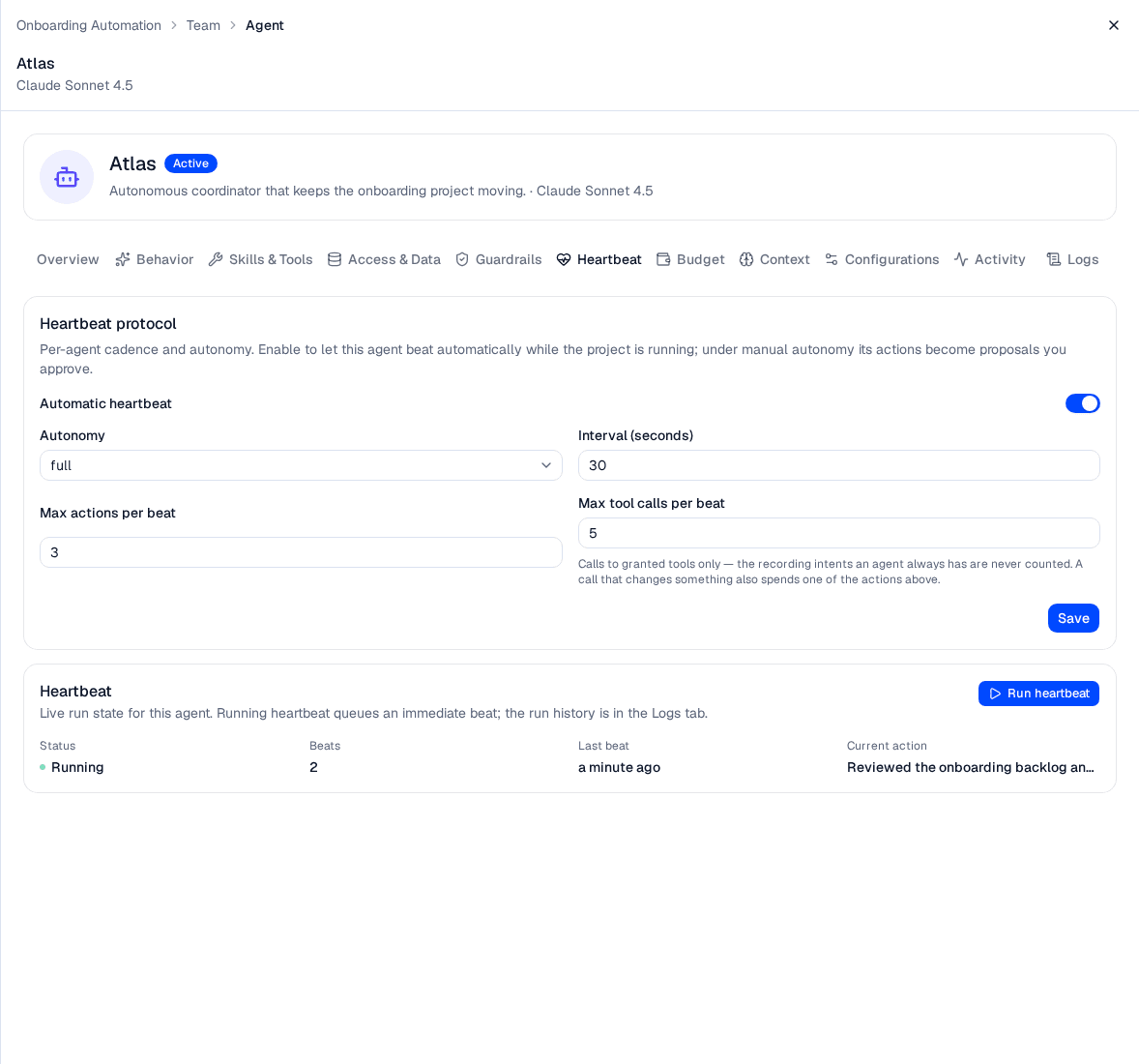
The Heartbeat tab pairs the agent's cadence and autonomy settings with its run state. That state is read when you open the project, not streamed — reopen the agent to refresh it. The history of past beats lives on the Logs tab.
Starting a project's team is not enough on its own. An agent only beats if its own Automatic heartbeat is on, and that is off by default — so a new agent sits idle on a running team until you enable it here. This is the most common reason a team appears to do nothing after you press Start.
Enabling it while the team is already running does not start the agent on its own. The team's run controls decide which agents are beating, and they decide it at the moment you press Start. After saving the setting, Stop and then Start the team — that is what puts the agent into the beat schedule.
Autonomy levels
An agent's autonomy decides what happens to the actions it produces on each beat.
| Autonomy | Behavior |
|---|---|
| Manual approval | Every action except an activity post becomes a proposal you approve or reject before it applies; activity entries always apply, being a log rather than a change. New agents default to manual. |
| Suggest | Actions apply automatically, within the agent's per-beat limits. |
| Full autonomy | Actions apply automatically, within the agent's per-beat limits. |
Suggest and Full autonomy behave identically today. Every gate in the platform tests for Manual approval and nothing else, and an applied action writes the same activity entry either way — so choosing Suggest over Full buys no extra review or audit. The only difference is a sentence of instruction the agent is given. Use Manual approval when you want a gate.
Heartbeat settings
The Heartbeat protocol card configures the agent's cadence. Edit the fields and click Save.
| Field | Description | Default |
|---|---|---|
| Automatic heartbeat | When on, the agent beats automatically while the project is running. Off by default, so a new agent never acts until you enable it. | Off |
| Autonomy | The autonomy level applied to this agent's actions. The closed selector shows the stored value — manual, suggest or full — while the open list shows the names below. | Manual approval |
| Interval (seconds) | The agent's own cadence, from 30 seconds to 24 hours — and the floor the idle backoff never goes below. | 300 |
| Max actions per beat | How many actions the agent may take in a single beat (1–20). Caps the work — and cost — of each turn. | 3 |
| Max tool calls per beat | How many calls to granted tools one beat may make (1–20). The recording intents every agent already has are never counted, and a call that changes something also spends one of the actions above. | 5 |
Enable automatic heartbeat only after you have set the agent's model and behavior. Start a newly enabled agent on Manual approval so you can review its proposals, then raise its autonomy to Suggest or Full autonomy once you trust how it works.
Cadence while an agent has nothing to do
A beat is a model call whether or not there is anything to do, so an agent that has finished its work does not keep asking at its full rate. A beat that changes nothing doubles this agent's interval, and it keeps doubling — one idle beat after another — up to the project's Idle check-in ceiling, which defaults to 60 minutes and is set when you edit the project.
A beat counts as changing something when it applied an action or raised a proposal for you to decide. A beat that produced nothing — including one that failed — counts as idle.
Three things reset the backoff and put the agent straight back on its own interval:
- Anything sent to the agent. A message, a reply, or a task assigned to it. Any of these wakes it immediately and clears the streak — including a nudge that arrives while a beat is already running.
- A beat that changes something. Doing real work is itself the reset.
- Starting or resuming the team. Every agent comes back on its own interval, however long the team was paused.
The ceiling never speeds an agent up. The backoff is floored at the agent's own interval, so a daily digest agent under a one-hour Idle check-in still beats daily. A ceiling lower than an agent's interval changes nothing for that agent.
Run heartbeat is outside all of this: a beat you run by hand neither moves the schedule nor resets the idle streak, whatever it does. Use it to test an agent without disturbing its cadence.
It overrides the run state — it works on a stopped project — but not the agent's own configuration. An agent whose Status is Paused or Archived, or one over its spend cap, is refused rather than beaten, so a manual beat cannot spend money an agent has been stood down from spending.
Watching an agent's beats
The Heartbeat tab shows this agent's run state: whether it is Running, how many Beats it has completed, when its Last beat ran, and its Current action. These are read when the project is opened rather than streamed, so reopen the agent to see the current figures. Click Run heartbeat to queue a single beat immediately — useful for testing an agent without waiting for its timer.
The history is on the agent's Logs tab, not here. Each entry there is one beat, with what triggered it, its outcome, and the actions, tokens and cost it consumed; select an entry to read its transcript.
Beat statuses
| Beat status | Meaning |
|---|---|
| Queued | Scheduled and waiting to start. |
| Running | Currently executing. |
| Succeeded | Completed normally. |
| Failed | Ended with an error, which is shown in the beat's transcript. |
| Timed out | Exceeded its time or action budget before finishing. |
| Cancelled | Stopped before completing. |
What triggers a beat
A beat is triggered by one of several events, shown next to each entry on the Logs tab:
| Trigger | What happened |
|---|---|
| Scheduled | The agent's interval timer came due. |
| Manual | You ran a beat on demand with Run heartbeat. |
Sending the agent a message, replying to it, or assigning it a task does not produce a trigger of its own — it brings the agent's next Scheduled beat forward to now.
Each agent runs on the model you chose for it, including your own bring-your-own model. The Logs tab makes the trade-off visible: compare tokens and cost per beat across agents so you can safely run cheaper models where they perform well.
Troubleshooting
| Symptom | Cause |
|---|---|
| The interval is 5 minutes but the agent has not beaten in 40 | It has backed off — several beats in a row changed nothing, so its interval has doubled toward the project's Idle check-in. Send it something to wake it, or lower Idle check-in on the project. |
| A new agent never acts on a running team | Its own Automatic heartbeat is off. It is off by default. |
Other symptoms and fixes for a team that is not behaving are collected in one place — see Interactions → Troubleshooting.
Related pages
- Team — staff the project with people and agents, and configure each agent's model and behavior
- Interactions — run the team, exchange messages, work the task board, and approve proposals
- Projects — the project's budget, which hard-stops the team when it is exhausted
- Model Providers — the models an agent can run on, and their token prices
Team
Build a project team of people and AI agents, organize them into a reporting hierarchy, and configure each agent's model and behavior from the project's Team tab
Interactions
Run a project's team of AI agents and people as a live, autonomous workspace — start and stop the team, exchange messages, manage a shared task board, watch activity, and approve agent proposals