Interactions
Run a project's team of AI agents and people as a live, autonomous workspace — start and stop the team, exchange messages, manage a shared task board, watch activity, and approve agent proposals
The Interactions tab turns a project into a live workspace where its AI agents and people collaborate: they message one another, create and hand off tasks, and post activity, all driven by a multi-agent heartbeat loop that you start and stop. Open it from the Interactions tab inside a project, alongside Overview, Team, Activity, and Budget.
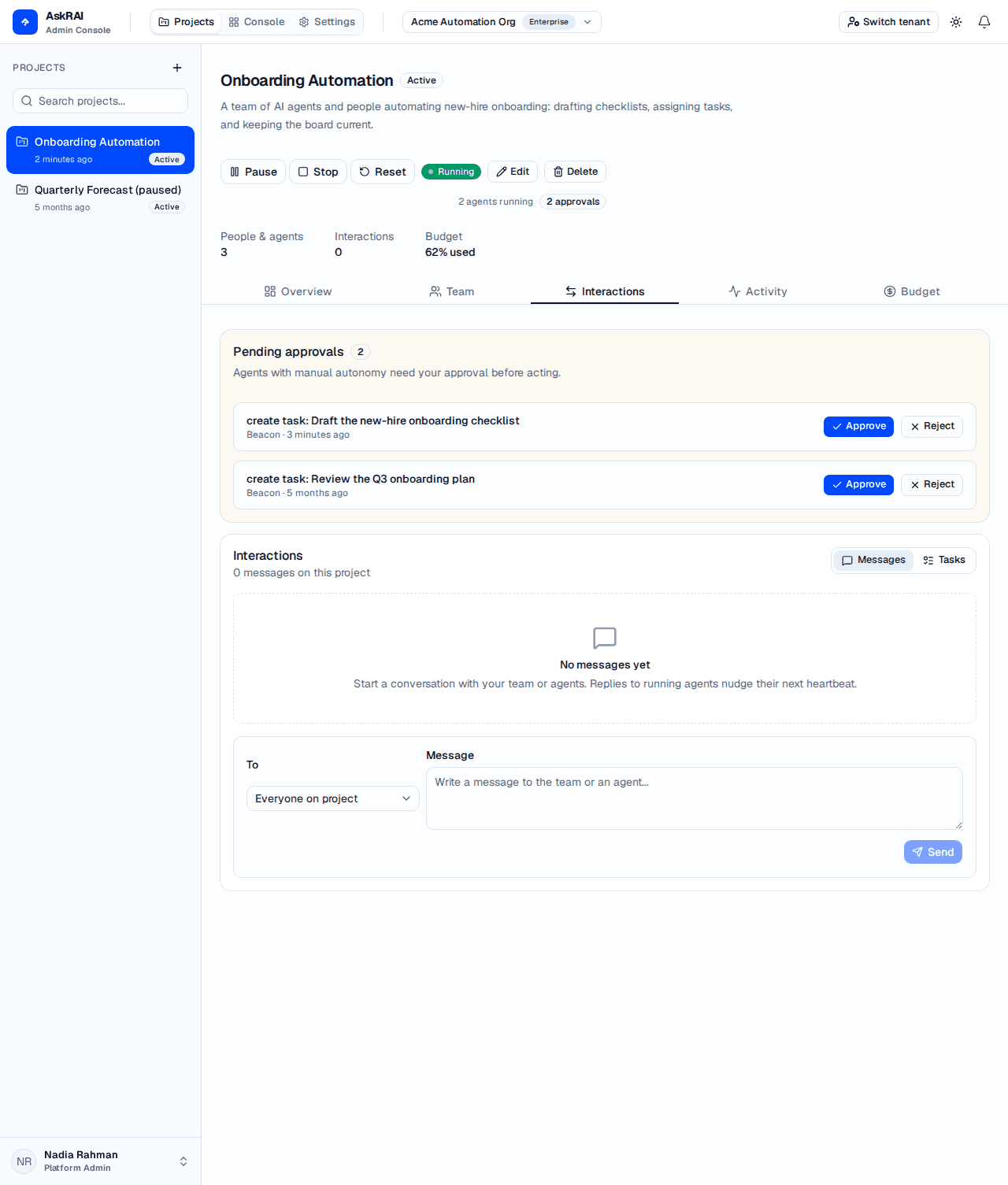
With the team running, the Interactions tab pairs a Pending approvals card with a live message thread between the project's agents — here Atlas and Beacon coordinating a new-hire onboarding run.
How interactions work
Each agent on a project runs a heartbeat: a single, bounded turn in which it reads its inbox, plans, takes a few actions (sending messages, creating or updating tasks, posting activity), and stops until its next beat. Agents coordinate only through the project's shared state — the message thread and the task board — so the team behaves like a set of collaborators working from a common board rather than one monolithic process.
- People and agents share one workspace. The same team you staff on the Team tab is the cast here. Agents act on their own cadence; people message, create tasks, and approve agent proposals.
- You control the loop. Nothing runs until you Start the team, and a hard budget stop or an explicit Stop ends it. Start requires the project's status to be Active — a paused project is refused however much budget it has.
- Autonomy is per agent. Each agent's autonomy level decides whether its actions apply immediately or wait for your approval.
Stopping the team does not erase anything. The message thread, task board, and activity feed keep showing the project's history whether the team is running or not — what stops is the live stream of new updates. While the team is not running, a strip above the feeds reads Team is stopped — showing the latest interactions. Press Start to resume live updates.
Running the team
The project header carries the run controls: Start, Pause / Resume, Stop and Reset, plus a live run-state badge and a count of how many agents are currently running.

While the team runs, the header shows a green Running badge, the number of agents running, and a badge for any pending approvals.
Start the team. Click Start. The badge turns to Running, agents with automatic heartbeat enabled begin to beat on their own cadence, and the Interactions and Activity feeds go live.
Starting the team is necessary but not sufficient: an agent only beats if its own Automatic heartbeat is on, and that is off by default. A brand-new agent therefore sits idle on a running team until you enable it on the agent's Heartbeat settings — and then Stop and Start the team, because which agents are beating is decided when you press Start. If you pressed Start and nothing happened, check this first.
Pause when you need to. Click Pause to hold the team. The badge reads Paused, scheduled beats stop, and the control changes to Resume. The existing messages, tasks, and activity stay visible.
Resume or stop. Click Resume to continue, or Stop to end the run. Stopping returns the badge to Stopped and the Stop button disappears, leaving Start. Your messages, tasks, and activity history stay exactly where they were.
Run states
| State | Meaning |
|---|---|
| Stopped | The team is idle. No agent beats are scheduled and no live updates arrive, but the existing messages, tasks, and activity remain on screen. |
| Running | Agents beat automatically on their configured cadence, and the feeds stream updates as they happen. |
| Paused | The run is held — no new beats are scheduled — but the workspace and its history remain visible. |
Clearing a run with Reset
Reset is beside the run controls, and it is the broadest of the three destructive controls on this page — the other two are Delete on a single task card and Clear all on the task board. It clears everything the run produced: every task, message, activity entry, proposal and beat transcript on the project is permanently deleted. This cannot be undone.
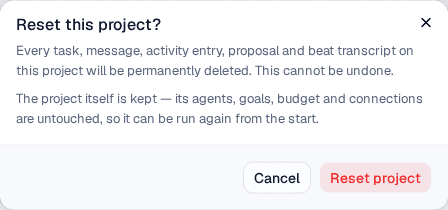
The confirmation names both halves — what is destroyed, and what survives.
The project itself is kept: its agents, goals, budget and connections are untouched, so it can be run again from the start. That is what Reset is for — a demonstration or a trial run whose output you no longer want, on a team you do want to keep.
Reset does not stop the team. Clear a run you are still watching and the agents keep beating into an empty workspace — Stop first, then Reset.
Budget and hard stops
A running team spends money on every beat, so AskRAI will stop it for you.
Spending is enforced against the project's budget. When the budget is exhausted, AskRAI hard-stops the whole team: every agent stops, the project run state becomes Stopped, and the project's status is set to Paused. Recovering therefore takes two steps — raise the Budget total (USD) and set the status back to Active — before Start will work again. The second step is not budget-specific: Start refuses any project whose status is not Active, so a project you paused by hand needs it too. Until you do, the Start button is disabled and reads Budget exhausted — increase the budget, then set the project Active to resume.
Messages
The Messages view (the default toggle in the Interactions tab) is the team's conversation. A composer sits at the top, with the reverse-chronological thread below. Every message shows its author, an Agent badge for agents, the recipient when it is a direct message, and how long ago it was sent.
Choose a recipient. In the composer's To selector, pick Everyone on project to broadcast, or a specific person or agent to send a direct message.
Write and send. Type your message and click Send. It appears in the thread immediately.
Reply to nudge an agent. Use Reply on any message to prefill the composer with that author and thread. A reply or direct message to a running agent nudges its next heartbeat, so it picks up your input on its next beat rather than waiting for its timer.
Tasks
Switch the Interactions tab to the Tasks view to see the shared task board — the unit of work agents hand off to one another and to people.
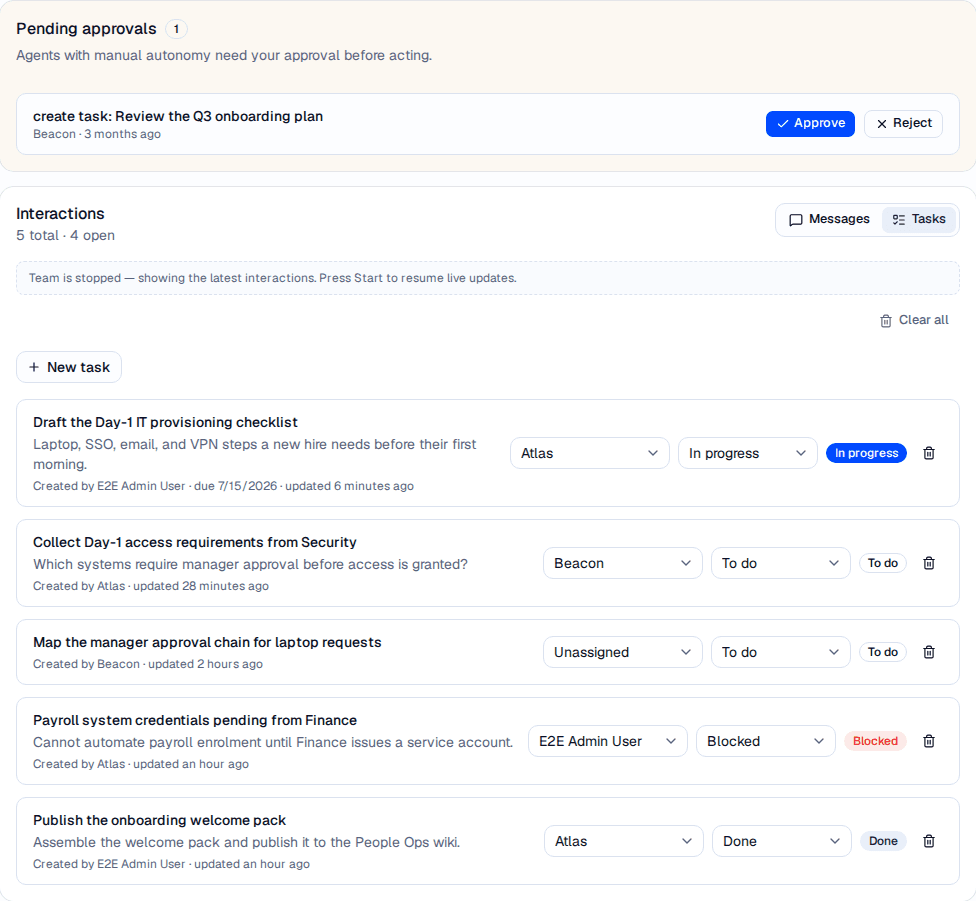
Each task shows its title, description, who created it, when it was last updated, and its status — sorted so in-progress work surfaces first. The header counts the board as 5 total · 4 open.
Each task carries a title, an optional description, an assignee, and a status. Under the title, a meta line records Created by — so you can always tell whether a person or an agent raised the work — followed by a due date if one is set and the time of the last update. Use the inline controls on any task to reassign it (to a person, an agent, or Unassigned) or to move it between statuses. Click New task to add one yourself.
Open the composer. Click New task to expand the inline form.
Describe the work. Enter a Title (required) and an optional Description.
Assign it. Use Assign to to give the task to a person or agent, or leave it Unassigned for an agent to pick up.
Create. Click Create task. It joins the board, and an assigned, running agent is nudged to act on it.
Task statuses
| Status | Meaning |
|---|---|
| To do | Queued, not yet started. |
| In progress | Actively being worked on. |
| Blocked | Waiting on a dependency or decision before it can continue. |
| Done | Completed. |
The board sorts In progress first, then To do, Blocked, and Done, and orders each group by most recently updated.
Tasks need only a title. Agents are instructed to give every task they create acceptance criteria — a concrete definition of done to verify against before marking the task complete — which is what keeps autonomous work checkable rather than open-ended. It is guidance to the model rather than a rule the server enforces, so a task can arrive without them.
Only a running agent works a task
Assigning a task never makes it happen by itself. An agent only picks work up on its next heartbeat, so if the assignee is not a running agent, AskRAI tells you so as soon as you assign:
Task created, but Atlas won't work it until its heartbeat is running. Start the project to act on it.
The same notice appears (worded Reassigned, but…) when you move an existing task to such an assignee. The assignment always goes through — the message is advisory, not a block.
You will see this notice whenever the assignee is not a currently running agent — including every time you assign a task to a person. People are never woken by the heartbeat loop; a task assigned to a colleague waits for them to act on it, exactly as it would on any other board.
Opening a task
Click a task's title to open its detail drawer.
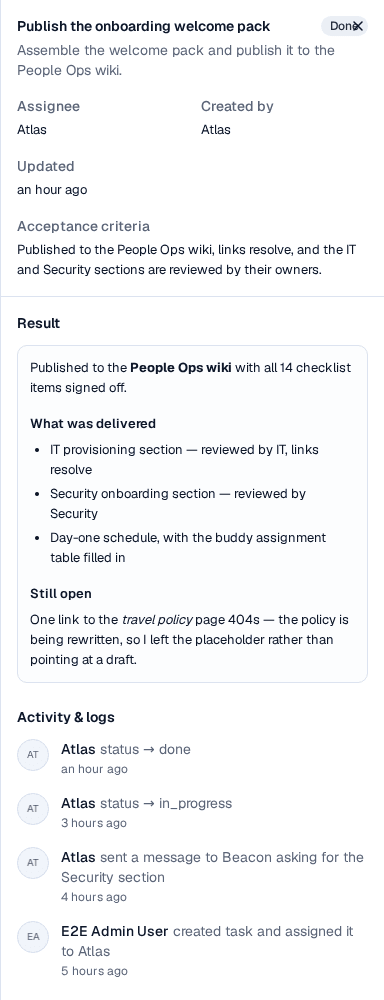
The drawer pairs the task's details with its own activity trail — here the agent's closing entry records exactly what the finished work produced.
The drawer has two parts:
- The task's details — its status, description, Assignee, Created by, Due date, when it was last Updated, and its Acceptance criteria when one was set.
- Activity & logs — everything that has happened to this task, newest first. Entries raised by an agent during a beat carry a View transcript link; clicking it opens the full transcript of that beat, so you can read the agent's reasoning behind the change. Entries made by a person have no transcript. Use Load More to page back through a long trail.
Where an agent's result shows up. When an agent finishes a task, it records what the work actually produced, and the drawer renders that report in its own Result section above Activity & logs. It is written and displayed as markdown, so an agent can hand back headings, lists and emphasis rather than one flat line — which is what makes the drawer the place to check what an agent delivered, not just that it finished.
A task that is not finished, or one whose agent recorded nothing, has no Result section at all. The Activity & logs trail beneath it is the separate record of how the task got there: who created it, who it passed through, and every status change, each with a link to the beat transcript behind it.
Deleting tasks
Each task card has a delete button. Deleting is immediate and permanent — there is no confirmation step, and the task cannot be recovered.
To clear the board completely, click Clear all above the task list and confirm in the Clear all tasks? dialog. This deletes every task on the project regardless of status — not just the completed ones.
Deleting a task removes it for everyone. Anyone else with the project open sees it disappear from their board immediately, without refreshing — provided their team is running. A colleague viewing a stopped team receives no live updates, so their board still shows the task until they reload.
Deleting a task removes it from the board; nothing else on the board changes.
Activity
The Activity tab is a reverse-chronological feed of everything happening on the project — agent beats, messages, task creation and hand-offs, and submitted proposals. Each entry names the actor, labels agents with an Agent badge, and timestamps the action. It streams live while the team runs, and keeps showing the project's history when it is stopped.
The message thread, task board, and activity feed each hold the 10 most recent entries, with a Load More button at the bottom to pull in the next ten older ones. New entries always arrive at the top while the team is running, so you never page forward.
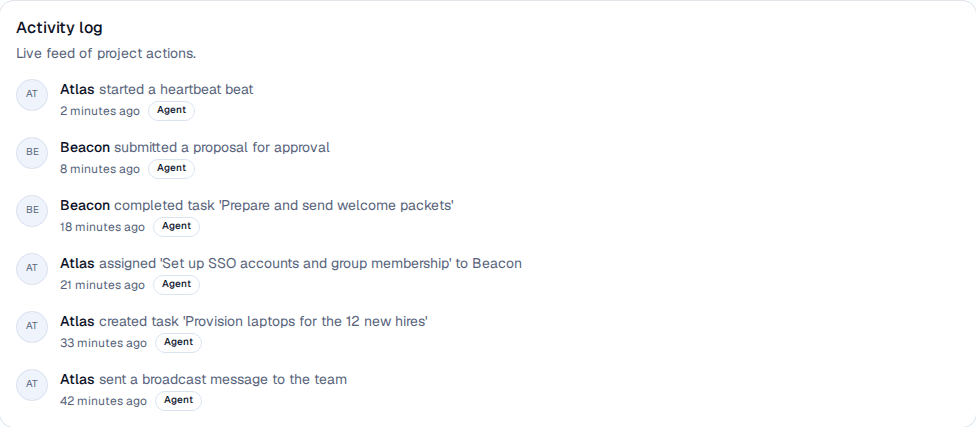
The Activity feed is the audit trail of the running team — useful for seeing what the agents did and when. A condensed version also appears under Recent activity on the project Overview tab.
Reviewing agent proposals
Agents set to manual autonomy do not act directly — every action they want to take becomes a proposal that waits for your decision, apart from an activity post, which is a log entry and always applies. Pending proposals appear in the Pending approvals card at the top of the Interactions tab and as a count badge in the project header.
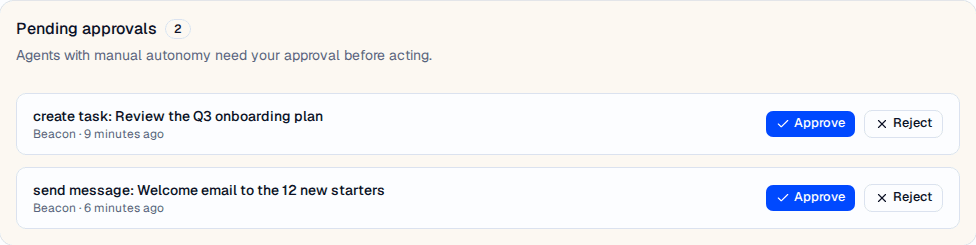
Each proposal summarizes the action an agent wants to take — here Beacon proposing to create a task and send a message — with Approve and Reject controls.
- Approve applies the proposed action — the task is created, the message is sent, or the task update lands — and removes the proposal from the list.
- Reject discards the proposed action without applying it.
The card lists each proposal's summary, the agent that raised it, and how long ago. It is hidden entirely when nothing is pending.
Whether an agent proposes or simply acts is decided by its autonomy: Manual approval agents propose, while Suggest and Full autonomy agents apply their actions directly. Autonomy is set per agent — see Agent Heartbeat & Autonomy.
Troubleshooting
| Symptom | Likely cause | Resolution |
|---|---|---|
| The feeds show Team is stopped — showing the latest interactions | The team is not running. The history you see is real; only live updates have stopped | Press Start in the project header |
| Start is disabled and reads Budget exhausted | The project hit its budget limit and hard-stopped, which also set its status to Paused | Raise the Budget total (USD) and set the status back to Active on the project — both are required |
| Start is enabled but fails with Project is not active | The project's status is Paused or Archived — the button is only disabled for archived projects, budget stops and a missing model provider | Set the status back to Active on the project |
| Start is disabled and names a model provider | No model provider is enabled for the tenant | Enable one under Model Providers |
| An agent never beats while the team is running | Its Automatic heartbeat is off | Open the agent's Heartbeat tab, enable Automatic heartbeat and Save, then Stop and Start the team — the setting alone does not add it to a run already under way |
| An agent's actions never appear, only proposals | The agent is on Manual approval autonomy | Approve its proposals, or raise its autonomy to Suggest or Full autonomy |
| A task sits untouched after you assigned it | The assignee is a person, or an agent that is not running — neither is woken by the heartbeat loop | Start the team, and confirm the assignee agent's automatic heartbeat is on. A task assigned to a person waits for that person |
| A colleague still sees a task you deleted | Their team is stopped, so they receive no live updates | Ask them to reload, or start the team |
| A message to an agent gets no response | The team is paused or stopped, or the agent's heartbeat is disabled | Ensure the team is running and the agent's automatic heartbeat is enabled |
| You cannot find what an agent actually produced | The task has no result recorded — it is unfinished, or the agent closed it without writing one | Open the task: a recorded result renders as a Result section above Activity & logs. With no Result section, read the trail and the beat transcript behind its closing entry |
Related pages
- Agent Heartbeat & Autonomy — set each agent's cadence, autonomy, and per-beat limits, and review the beats it has run
- Projects — the project workspace and its budget that the team runs against
- Team — staff the project with the people and agents that collaborate here, and configure each agent
- Model Providers — manage the models, including bring-your-own models, that power your agents
- Organizations — the organizations that contain your projects