Project Configurations
Name the values a project's agents and assistants are told in every beat, such as the currency its reports use, set one for every project of an organization, give one agent a value of its own, and keep secrets out of them
A project's configurations are named values its whole team works to, such as REPORT_CURRENCY = EUR or STRATEGY_FISCAL_YEAR = 2027. Set one once and every agent on the project is told it in every beat, and every assistant in every reply, so nobody restates it in each agent's instructions.
Open a project and choose its Configurations tab.
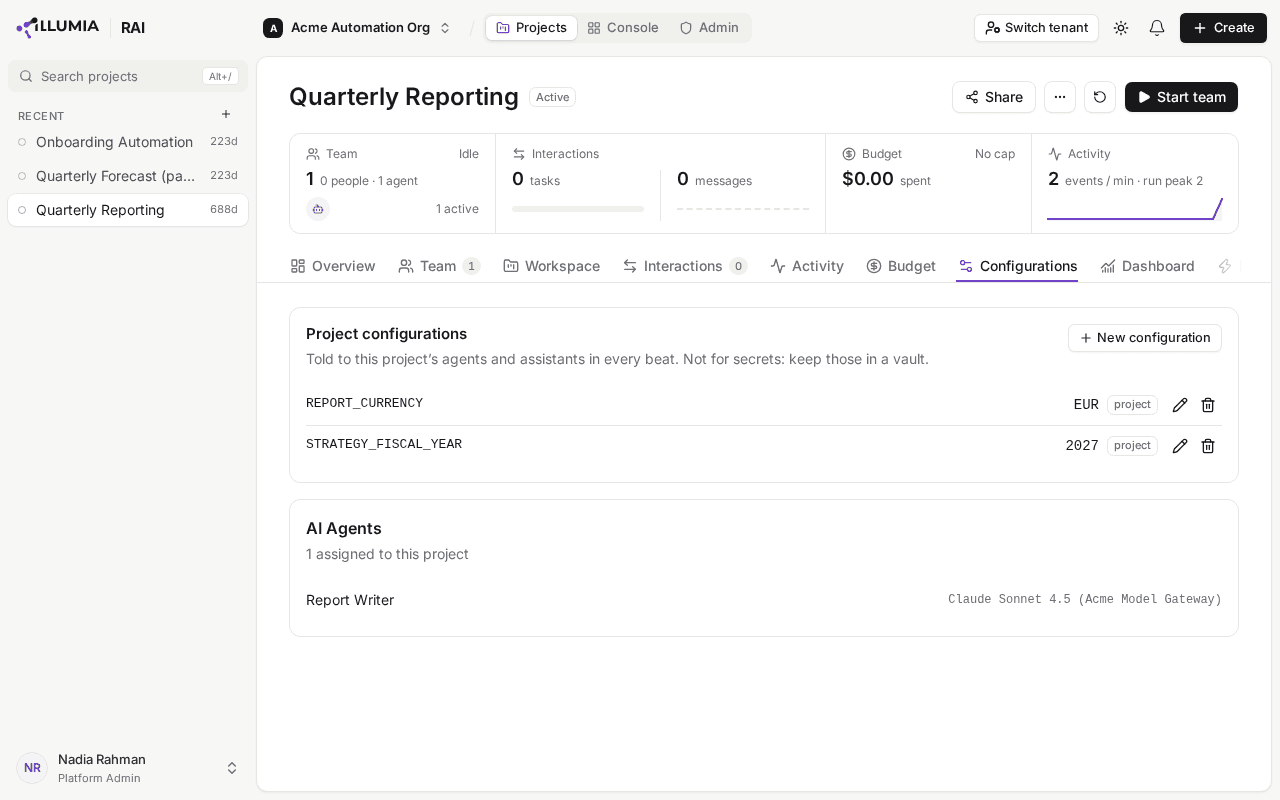
Each value shows its key, its value and where it comes from; the AI Agents card lists the agents it is told to.
What a value is
Each configuration is a key, a value and an optional description.
| Field | Holds |
|---|---|
| Key | Capital letters, digits and underscores, starting with a letter, up to 64 characters, such as REPORT_CURRENCY. A key is never renamed: remove it and add another |
| Value | One line of up to 500 characters |
| Description | One line of up to 200 characters saying what the value is for. Agents are told it beside the value |
A project holds at most 50 configurations, each agent at most 50 of its own, and each organization at most 50.
Who is told it
From their next beat, the project's agents are told each value in key order, with its description, as part of their instructions. The project's assistants are told the same values in each reply. A change reaches the next beat or reply, with nothing to restart.
A value is something your team states, not a switch the platform enforces: it shapes what an agent does as its instructions do. To hold agents to a rule, use guardrails and policies.
An organization's values
An organization can hold values too, told to every agent and assistant in all of its projects: set SALES_WEEK_START = monday once on the organization, and none of its projects needs to repeat it.
An Admin of the organization adds, edits and removes them in Admin → Organizations: choose Edit on its row, and use the Organization configurations section of the dialog, which only its Admins open. Anyone else sees them on the Configurations tab of each of its projects they can read. Each change is an entry in the Change Log, under Organizations, with the value and description before and after. Deleting the organization removes its values with it.
On each of its projects' Configurations tab, the organization's values follow the project's own, with an organization badge. They read only there; for an Admin of the organization, each links to Organizations, where it is changed. A project that sets a key of its own is listed with its own value and not the organization's.
Which value wins
Where more than one holder has a value of the same key, an agent is told one, the nearest:
- The agent's own value, if it has one.
- Otherwise its project's.
- Otherwise its organization's.
A project's assistants are told the project's value over the organization's, and never an agent's own.
An agent's own values
One agent can be told a value of its own. Where an agent and its project both hold a key, the agent's value wins: set REPORT_CURRENCY = USD on one agent of a project that says EUR, and from its next beat that agent is told USD while its teammates are still told EUR. The project's assistants are told the project's values only, never an agent's.
Open the agent from the project's Team and choose its Configurations tab, under Monitor. Agent configurations lists every value the agent is told, one per key, each with its description and a badge saying where it comes from: agent for its own, project or organization for one it takes from its project or organization. An agent value that replaces its project's or organization's of the same key says which under its key.
Add one with New configuration on that card, and edit or remove one of the agent's own from its row. A project row is changed on the project's Configurations tab, and an organization row on Organizations. Removing the agent's own value of a key its project or organization also holds makes the agent take theirs again from its next beat. Deleting the agent removes its values with it.
Adding, editing and removing a value
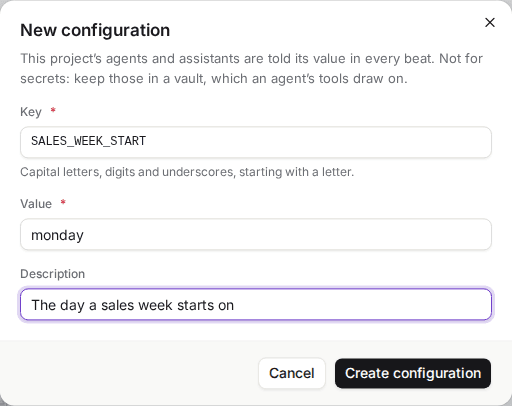
A key is capital letters, digits and underscores, and is never renamed once saved.
Add one. Click New configuration on the Project configurations card, enter its key, value and description, and save it.
Edit one. Click Edit on its row to change its value or description.
Remove one. Click Remove on its row and confirm. Agents are no longer told it from their next beat.
You can also choose Create → Configuration at the right of the top header, which opens the Configurations tab of the project you have open, with New configuration open. It is disabled, with the reason, while no project is open, below Write access to it, or while it is Archived.
Each change is a line in the project's Activity naming the key and who changed it, and for an agent's value the agent too. The line never shows the value.
Who can change them
Anyone with Read access to the project sees its configurations and its agents'. Adding, editing and removing one, the project's or an agent's, need Write access: below it, the controls are disabled with a reason naming the access they need. On an Archived project they are disabled for everyone.
Not for secrets
A configuration is told to the agents and assistants it reaches, in plain text, so it must never hold a password, an API key or a token. A value that looks like a credential is refused when you save it. It is judged with its key and description, so a password under a key such as SERVICE_PASSWORD is refused even where the value alone would not look like one. Keep secrets in a vault, which an agent's tools draw on without the agent ever reading them.
The AI Agents card
Below the configurations, AI Agents lists the project's agents, each with the model it runs on and that model's provider: the agents the values are told to.
Interactions
Run a project's team of AI agents and people as a live, autonomous workspace — start and stop the team, exchange messages, manage a shared task board, watch activity, and approve agent proposals
Project Memory
Turn memory on for your tenant, and write the rules every agent on a project is told in every beat, such as a release cadence or a house style, within the project's bounds and with secrets kept out